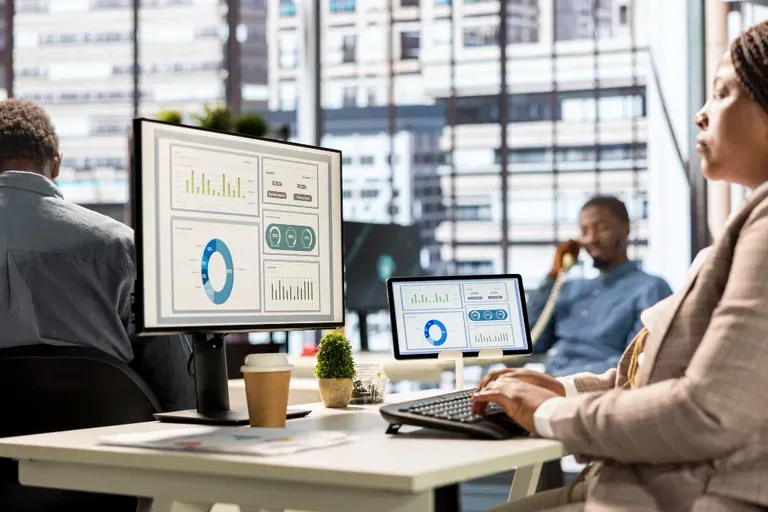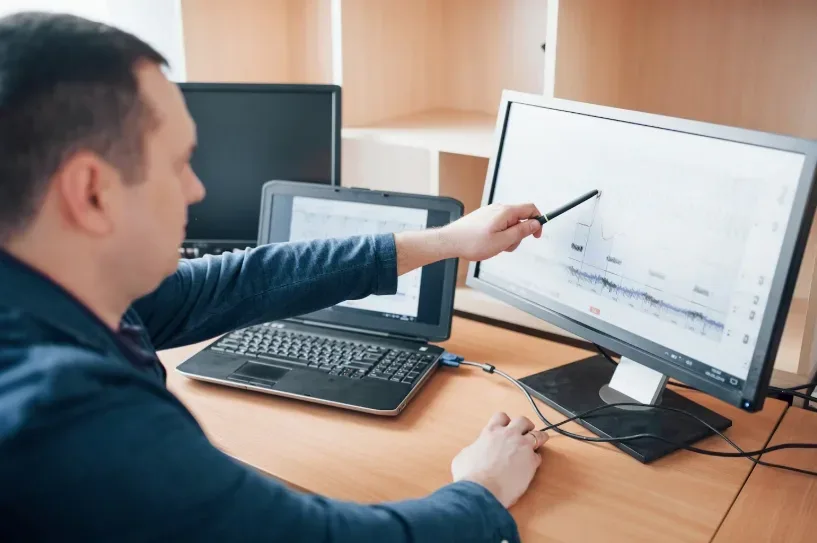
Screen monitoring software is a tool that lets businesses view, record, or track what's happening on an employee's computer screen during work hours — typically through screenshots, activity logs, or live viewing. For B2B teams managing remote or hybrid staff, understanding what is screen monitoring software and how can it benefit your business often comes down to one thing: visibility without micromanagement.
Whether you're comparing employee screen monitoring software, remote screen monitoring software, or looking at screen monitoring software free options for a small team, the goal is the same — knowing how work actually happens, so you can support your people better. This guide covers what these tools do, their pros and cons, and how to use them responsibly.
What is Screen Monitoring Software?
At its core, screen monitoring software captures activity on an employee's device — screenshots, active applications, time spent on tasks — and organises it into reports managers can review. It's a category that includes screen tracking software, PC monitoring software, and desktop monitoring software, all built around the same idea: turning screen activity into usable data.
Modern workforce monitoring software has moved well past basic screenshots. Many tools now offer live viewing, productivity scoring, and integration with project management platforms, making them genuinely useful for managing distributed teams rather than just checking up on people.
Key Features
Not all computer screen monitoring software is built the same. Here's what typically separates a genuinely useful tool from a basic one.
Try OfficePortal free for 5 users
All-in-one HRMS — attendance, payroll, leave and more. No credit card needed.
Real-Time Screenshot Capture
Automatic, scheduled screenshots give managers a snapshot of active work without requiring constant check-ins. Most tools allow you to set capture frequency to balance detail with privacy.
Multi-Screen Monitoring
For employees working across multiple monitors, good screen monitoring tools capture activity across every display — not just the primary one — so nothing gets missed.
Flexible Snapshot Policies
The best remote employee monitoring software lets you customise how often screenshots are taken, blur sensitive content, and pause capture during breaks or personal time.
Intuitive Dashboard
Raw screenshots aren't much use without context. A clean, well-organised dashboard turns activity data into readable trends — who's overloaded, which tools are underused, and where bottlenecks are forming.
Pros and Cons of Using Screen Monitoring Software
Like any workforce tool, screen monitoring software free or paid comes with trade-offs worth weighing.
Pros:
- Clear visibility into how work time is spent
- Useful data for identifying bottlenecks and workload imbalances
- Stronger security and compliance record-keeping
- Supports fair, evidence-based performance conversations
Cons:
- Can feel invasive if introduced without context
- Risk of over-reliance on screenshots instead of outcomes
- Requires a clear policy to avoid legal or trust issues
How To Use Screen Monitoring Software Responsibly
Responsible rollout is what separates helpful oversight from surveillance that damages morale. Follow these steps.
Step 1: Set Clear Policies
Define exactly what's monitored, when, and why, before any employee monitoring software goes live. Ambiguity is where trust breaks down fastest.
Step 2: Maintain Transparency
Tell your team monitoring is happening — don't let them discover it. Transparency is non-negotiable for employee screen monitoring done right.
Step 3: Minimise Intrusion
Avoid capturing more than necessary. Blur personal tabs, skip password fields, and keep monitoring focused strictly on work-related activity.
Step 4: Respect Non-Work Hours
Pause tracking outside scheduled work hours. Monitoring someone's screen after they've logged off crosses from oversight into overreach.
Step 5: Use Data Constructively
Treat screen data as a conversation starter, not a verdict. Use it to support employees who seem stuck, not to catch people out.
What Does Employee Screen Monitoring Look Like in Practice?
In a typical setup, a remote team uses PC monitoring software that captures periodic screenshots and logs active applications throughout the day. Managers review weekly summaries — not individual screenshots — to spot patterns like frequent context-switching or unusually long idle periods.
This is where screen tracking software earns its keep: not by watching every click, but by surfacing trends that would otherwise stay invisible across a distributed team.
Conclusion
Screen monitoring software works best when it's built for clarity, not control — and that's exactly the approach OfficePortal takes. With real-time screenshot capture, an intuitive dashboard, and flexible policies that respect employee privacy, OfficePortal turns screen activity into insights your managers will actually use.
If you're exploring computer screen monitoring software for your team, OfficePortal is worth evaluating for its balance of transparency, ease of use, and genuinely actionable reporting.

About the author
Kannan Chandrasekaran
Director@Awarious
Kannan Chandrasekaran is a Director and HR technology professional with expertise in HRMS, payroll, workforce management, and digital transformation. He shares practical insights to help businesses simplify and improve their HR operations.
Connect on LinkedIn