My Tasks is your personal work queue in OfficePortal’s time tracker: every task, bug and field task assigned to you across all projects, each with a one-click timer. Teams use it to track time on tasks accurately as they work — without reconstructing timesheets from memory at the end of the day.
What you’ll see in My Tasks
Each row is one work item assigned to you. The icon tells you what kind of work it is:
- Task — a standard to-do on a project board.
- Bug — a defect to investigate and fix.
- Field task — work at a client location; these carry an address and pair with Location tracking.
A muted icon with a “Sub task of parent task” hint means the item belongs to a bigger task. Click any row to open the full work-item details — description, comments, attachments and labels.
[Screenshot: My Tasks list with several task types — see capture list in the pilot document]
How to track time on a task
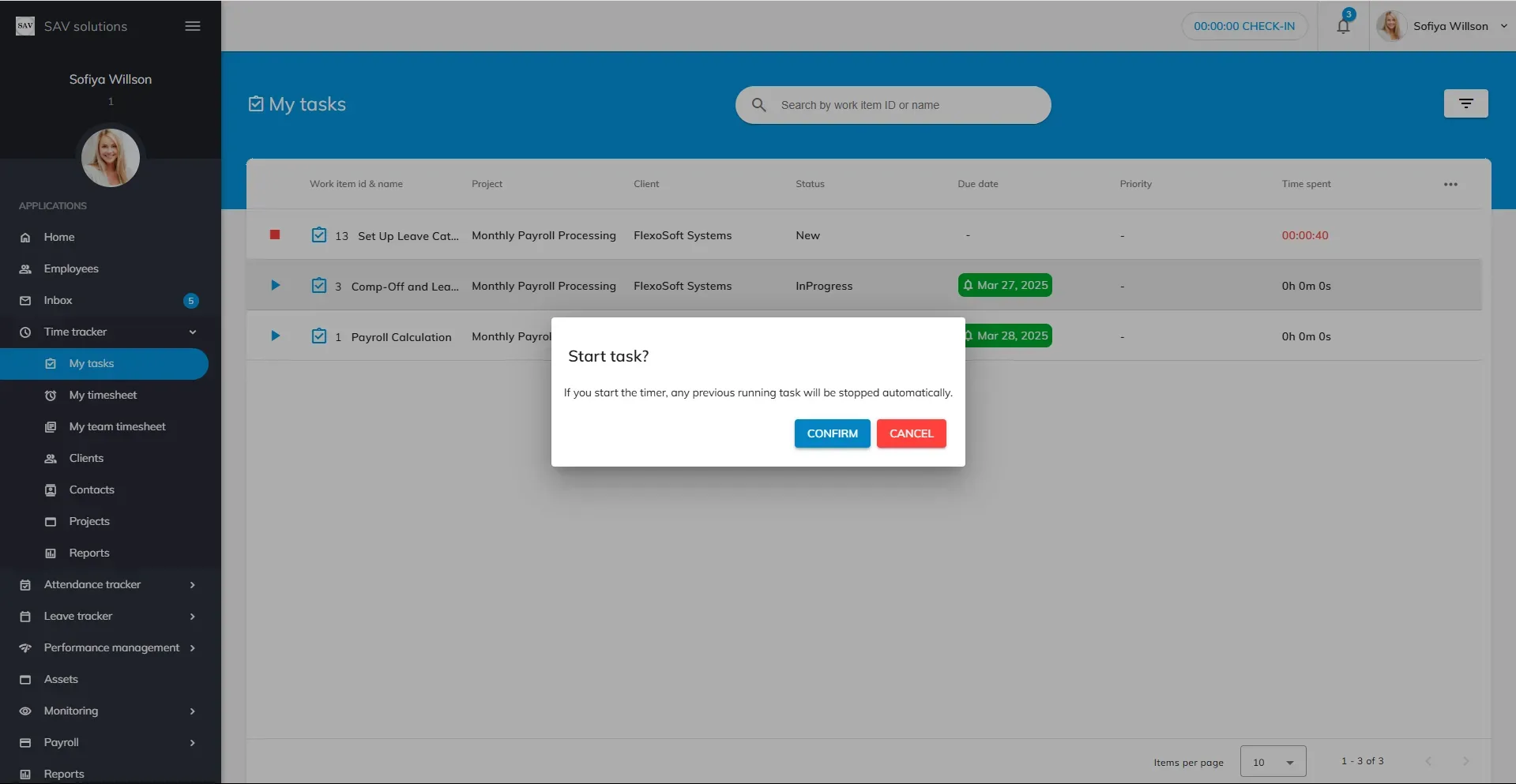
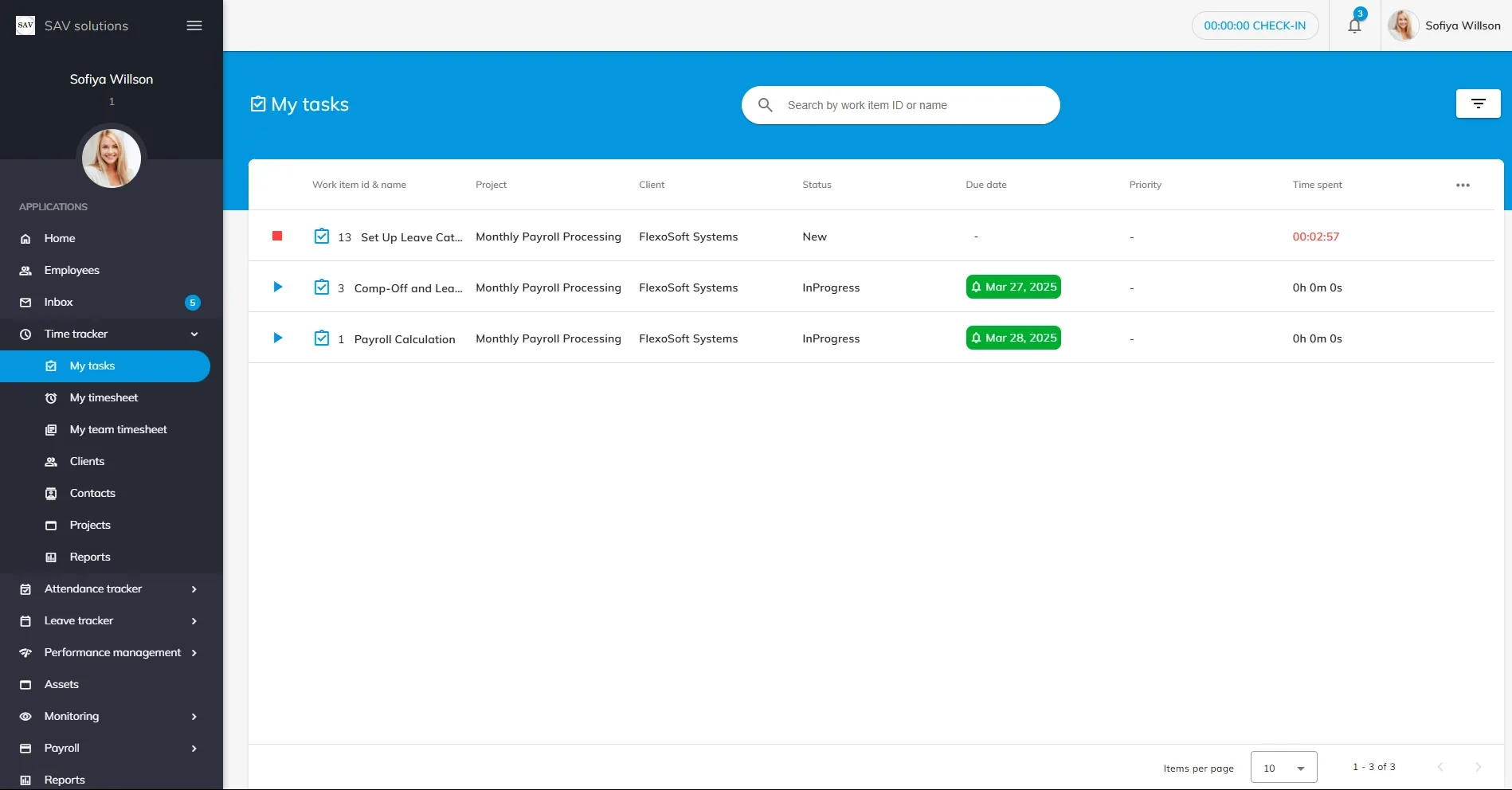
- Press the ▶ play button on the task you’re starting. The Time spent counter turns red and ticks live while you work.
- Press ■ stop when you finish or switch. The session is logged to your timesheet automatically.
One timer at a time — by design
Only one task timer runs at a time. Starting a new task pauses the timer on your current one — nothing is lost. Restart the earlier task later and it keeps accumulating; each task’s Time spent is the sum of all its sessions. That’s why the play button on other tasks shows: “Starting this task will pause the timer on the existing task.”
Finished tasks can’t be timed
When a task sits in a done-type status column, its play button is disabled with the note “Timer cannot be run in done status”. If the task genuinely needs more work, move it back to an active column first.
[Screenshot: Running timer with the red live counter — see capture list in the pilot document]
Find the right task fast: search, filters and columns
- Search by work item ID or name from the top bar — or press Ctrl + E.
- Filter by work item type, client, project, status column, label, priority and archive status. By default the list shows New and InProgress, unarchived items — if a task seems to have disappeared, it has usually moved to a done column: widen the Status columns filter.
- Choose columns with the tune icon at the table’s top-right: tick what you need, drag to reorder, then Apply. The icon turns red while changes are pending.
[Screenshot: Filter panel with default statuses visible — see capture list in the pilot document]
Understanding the columns
- Project status column vs Work item status — the first is the project’s stage, the second is this task’s own column on the board. They move independently.
- Due date — colour-coded by urgency, and can include a due time.
- Priority — values come from your company’s own list (Settings → Time tracker settings → Priority).
- Address — appears only when your company subscribes to the Location-tracking add-on; it shows the client or site location for field tasks.
- Time spent — the total of every timer session on the task, in hours, minutes and seconds.
Related articles
My Timesheet · Projects · Time tracker overview · Task management in OfficePortal