Holidays
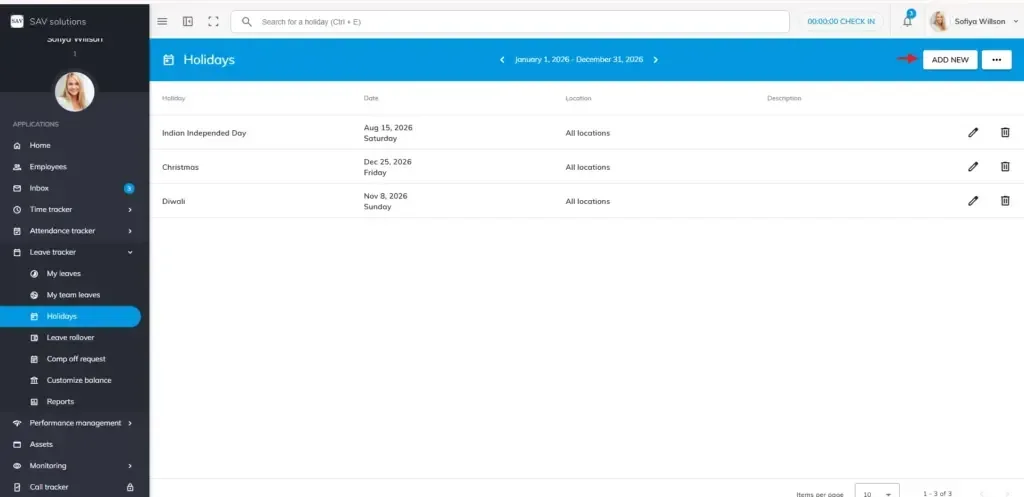
Setting holidays in the Office Portal is simple. Navigate to Leave Tracker and open the Holidays section to get started
Adding a New Holiday
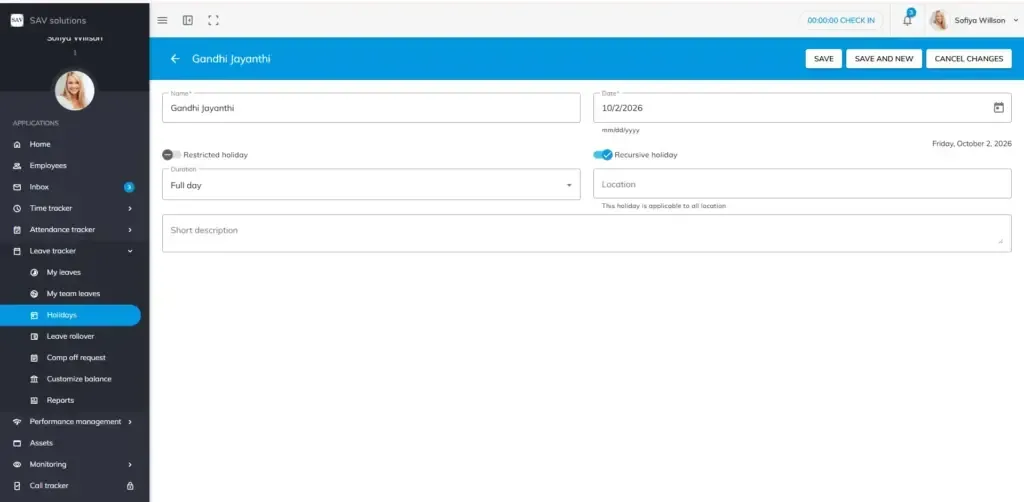
Step 1: Click the Add New button and fill in the following details:
Step 2: Holiday Name: Enter the name of the holiday.
Step 3: Date: Pick the exact date of the holiday.
Step 4: Add Holiday location. If no location added, the holiday will be applicable to all locations.
Restricted Holiday
Enable this toggle if the holiday is a restricted holiday. Unlike regular holidays, where the day off applies to everyone automatically a restricted holiday requires the employee to apply for leave and get it approved by their reporting manager.
If your organisation follows this concept, ensure that Restricted Holiday is added as a leave type in your Office Portal account and that employees are assigned a restricted holiday leave balance. For example, Muharram can be marked as a restricted holiday, allowing employees who observe it to apply for leave using their restricted holiday balance.
Recursive Holiday
Enable this toggle to automatically mark the same date as a holiday every year. For example, if Indian Independence Day is set as a recursive holiday, it will be added automatically each year without any manual effort.
Step 4: Select whether the holiday is a Full Day or Half Day. If Half Day, specify whether it applies to the First Half or Second Half of the day.
Step 5: Select the branch or region the holiday applies to. If left blank, the holiday will apply to all employees across the organisation, regardless of their location.
Description: Optionally, add a short description for the holiday. This field can be left blank if not required.
Saving the Holiday
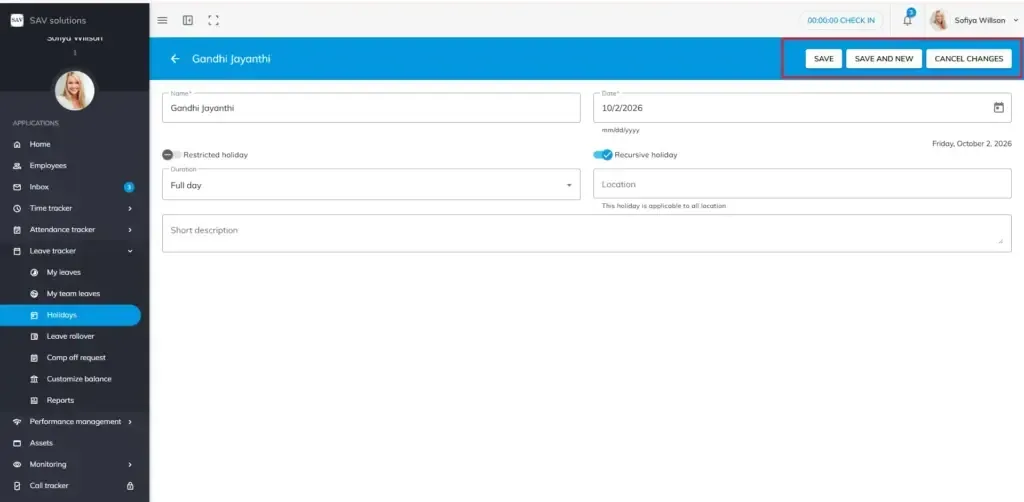
Once all required fields are filled in, choose one of the following options:
Save – to save the holiday and finish.
Save & New – to save the current holiday and immediately add another one.
Cancel Changes – to discard the entry and start over.
Exporting Holidays
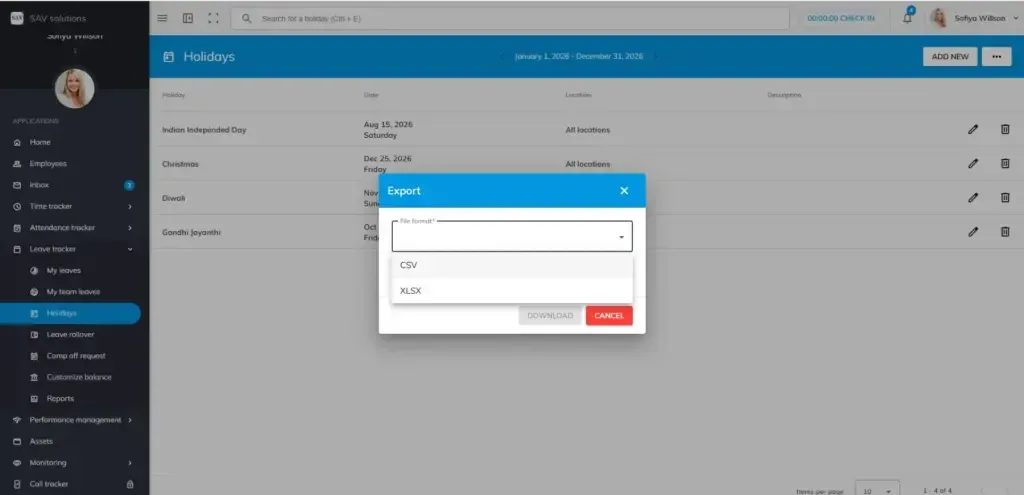
If needed, you can export the holiday list for your reference using the export option available in the Holidays section.
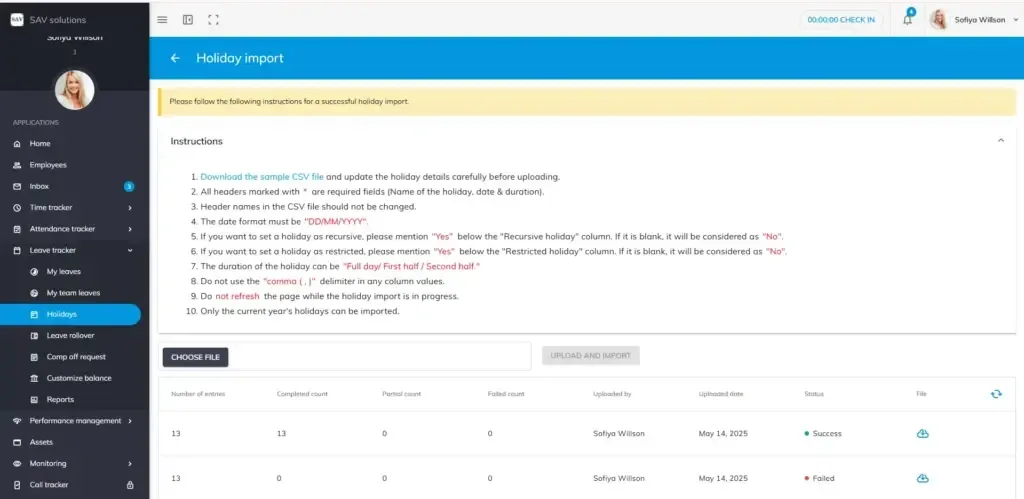
Importing Holidays
To avoid adding holidays one by one, use the Import option to upload your organisation’s holiday list in bulk.
Step 1: Read the instructions carefully before proceeding.
Step 2: Download the sample CSV file provided.
Step 3: This file shows the exact format you need to follow.
Step 4: Clear the sample entries and fill in your organisation’s actual holiday details.
Step 5: Ensure all mandatory fields are filled and pay close attention to the date format, which must match exactly as mentioned in the instructions.
Step 6: Once your data is ready, save the file, return to the import section, click Choose File, and upload the updated CSV.
Your holiday list will be automatically updated in the Holidays section, no manual entry required.