My Leaves section in Leave Tracker allows you to view your leave availability, apply for leaves, and manage your leave requests, all in one place.
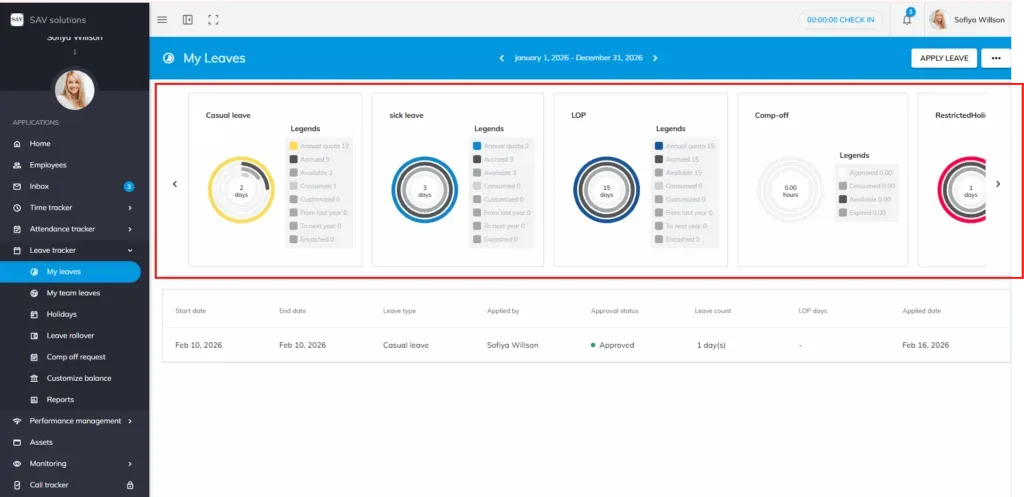
Checking Your Leave Availability
Navigate to Leave Tracker and open the My Leave section to view your current leave balances. You can see your leave balance count in the exact leave legends. Your leave availability is calculated based on:
- Your date of joining
- Your organization’s leave policies
Note: Your available leave count may differ from your co-workers as it is entirely determined by your joining date and your organization’s norms.
Applying for Leave
There are two ways to apply for leave:
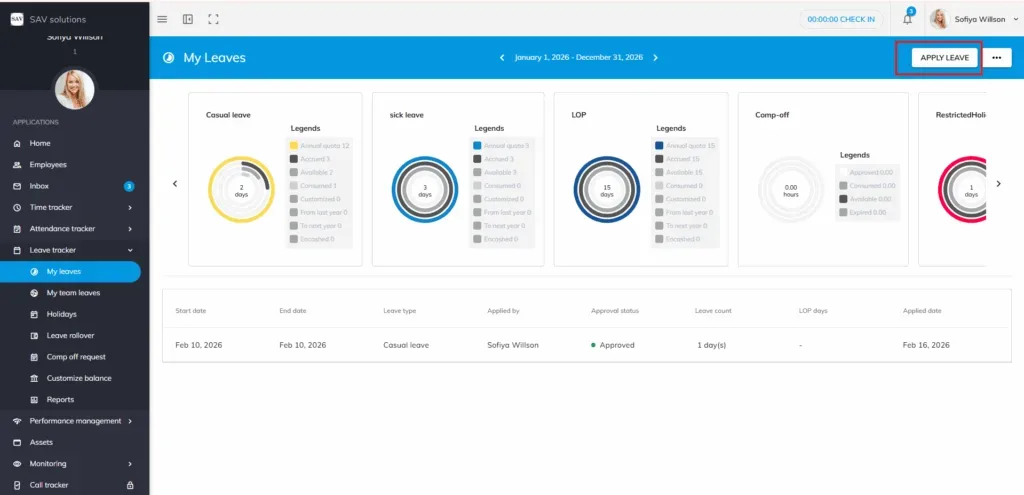
Option 1: Using the Apply Leave Button
- Click the Apply Leave button.
- You will be required to manually select the type of leave you are applying for.
Option 2: Clicking the Leave Legend Directly
- Click on the specific leave legend (e.g., Sick Leave, Casual Leave).
- The leave type is automatically pre-selected — no manual selection needed.
Filling the Leave Application Form
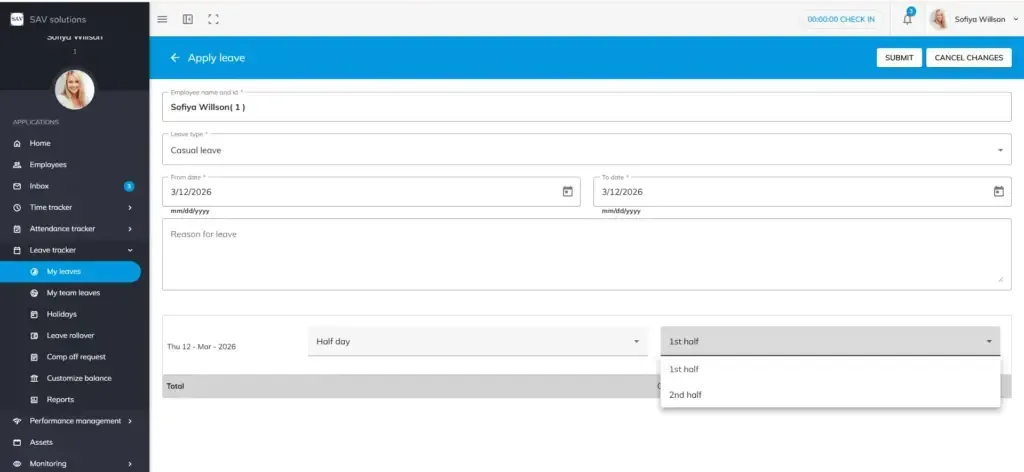
Once the leave form is open, complete the following fields:
- Enter the From Date and To Date for your leave.
- Write a reason for your leave (optional).
- Select Full Day or Half Day.
- If Half Day is selected, choose First Half or Second Half as per your organization’s settings.
- Upload supporting documents (PDF or image format) if required by your organization.
- Click the Submit button to send your leave request.
Once submitted, your leave request will be notified to your reporting manager for approval.
Note: Half-day leave can only be applied if your organization permits it.
For consecutive leave, you can only apply for the maximum number of consecutive days allowed by your organization (e.g., 3, 4, or 5 days depending on company policy).
If your leave balance (e.g., Sick Leave or Casual Leave) reaches zero, your organization may allow leave with a negative balance, offer unpaid leave, or restrict you from taking the leave altogether. This depends on your company’s guidelines.
If you encounter any issues while applying for leave, contact your HR department for assistance.
Cancelling a Leave Request
For Pending Leave
If your leave request is still pending approval:
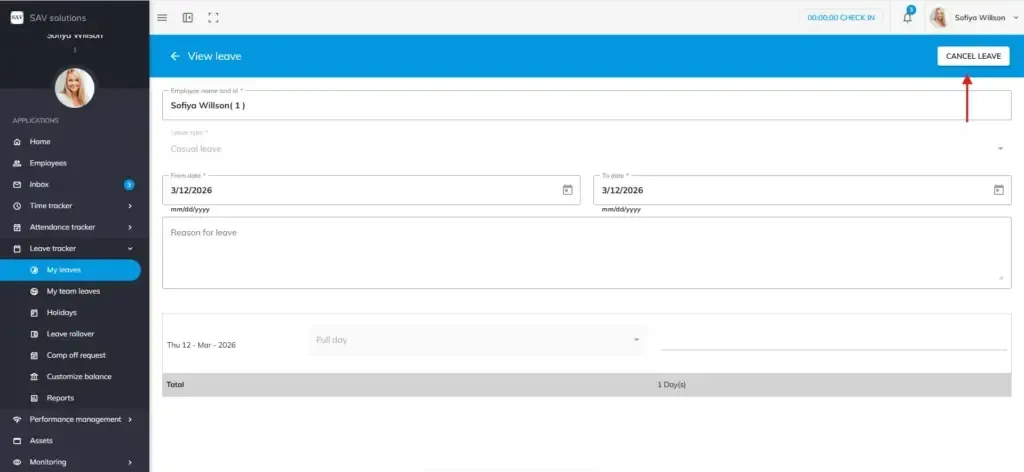
- Go to the leave request.
- Click the Cancel Leave button in the top-right corner.
For Past Approved Leave
Employees cannot cancel their own approved past leaves. Only a manager or admin can cancel approved past leaves on your behalf. Please reach out to your manager or HR for assistance.
Note: If you plan to apply for or cancel leave, ensure that the pay run for the month has not yet been submitted. Once the pay run is submitted, employees will be restricted from applying for or cancelling any leave.