The My Team Leaves section allows authorized personnel to manage leave information for their team members. In this section, you can view different leave types along with the accrued leave and available leave balance for all employees.
Only authorized personnel have access to this section.
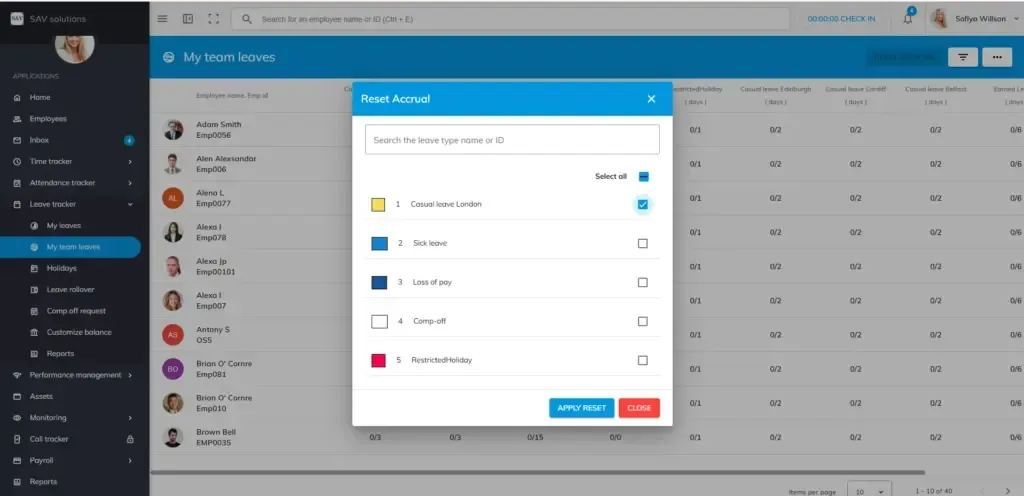
Reset Accrual for a Particular Leave Type
If you want to reset the leave accrual for a specific leave type for all employees, follow these steps:
- Click the Reset Accrual button.
- A dialog box will open.
- Search for the required Leave Type using the Leave Type ID.
- Select the required leave type or use the Select All checkbox to select all leave types.
- Click the Apply Reset button to reset the accrual.
Export Leave Data
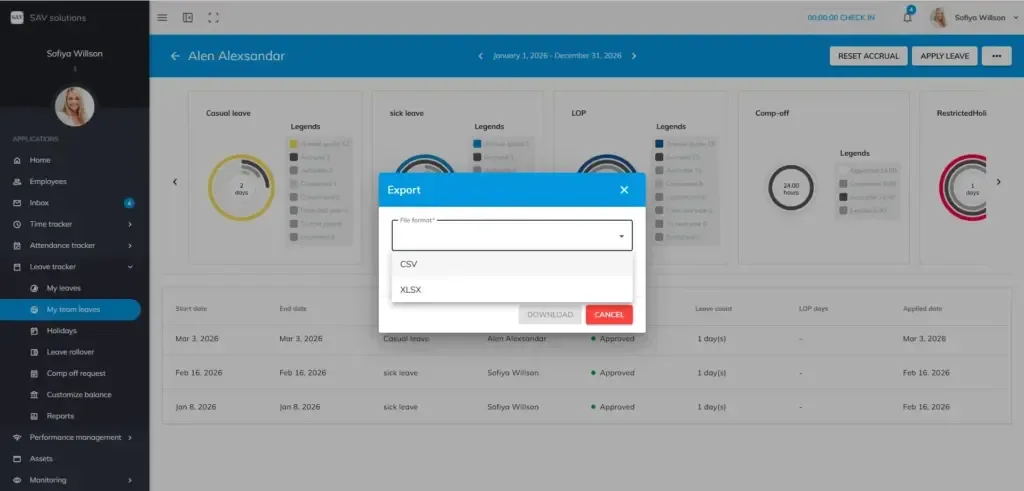
You can export the accrued leave and available leave balance data for all employees using the Export option available in this section.
The data can be downloaded in:
- XLSX format
- CSV format
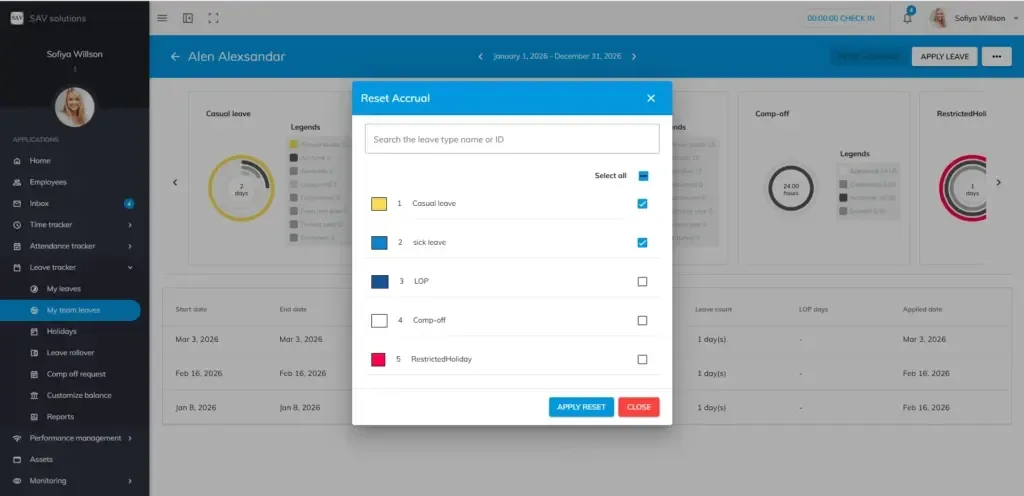
Reset Accrual for a Particular Employee
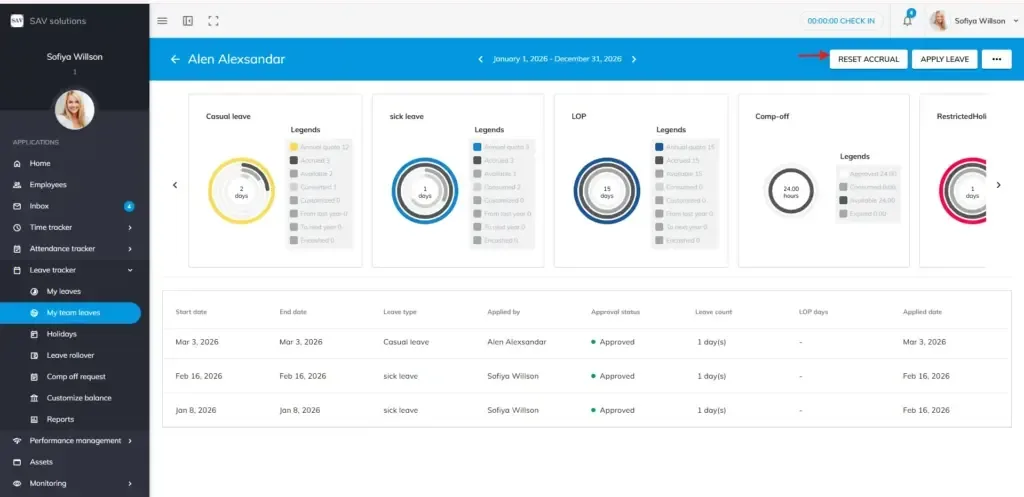
If you want to reset the leave accrual for a specific employee, follow these steps:
- Search for the employee using the Search box or Filter option.
- Open the required employee record.
- Click the Reset Accrual button.
- Select the leave type for which you want to reset the accrual.
- If required, you can select Select All to reset accrual for all leave types for that employee.
- Click the Apply Reset button to complete the process.
Applying Leave for Your Team Member
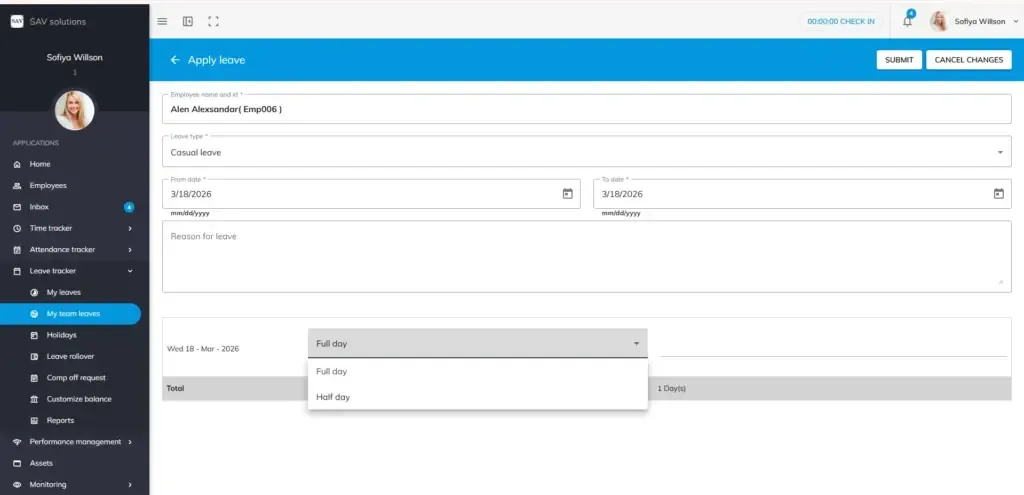
In OfficePortal, managers can apply leave on behalf of their team members.
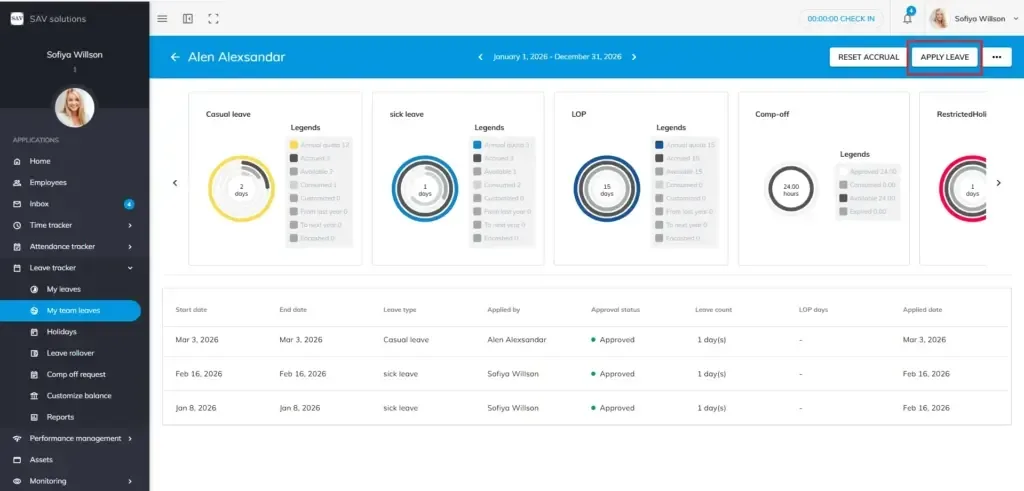
To apply leave for a team member:
- Go to My Team Leaves.
- Select the employee for whom you want to apply leave.
- Click the Apply Leave button.
- Select the Leave Type.
- Enter the From Date and To Date.
- Provide a Reason if required.
- Choose Full Day or Half Day leave.
- If Half Day is selected, choose First Half or Second Half.
- Click the Submit button to apply the leave.
If the leave request is pending for approval, managers may also cancel the leave request for the team member.
Please note; This option depends on role-based access. Only users with the required permissions can perform this action.