The My Goals section under Performance Management helps employees set, track, and manage their individual goals efficiently. It provides a clear view of your objectives, progress, and timelines, ensuring alignment with organizational expectations.
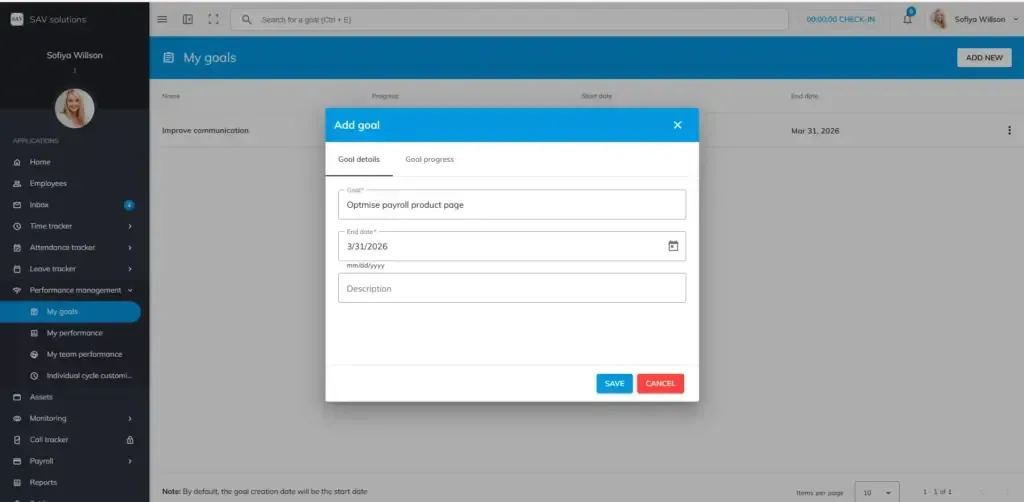
How to add new goals:
To Add your goals,
Step 1: Enter the ‘My goals” section under the performance management.
Step 2: Click the “Add new” button
Step 3: A pop-up box will appear. There you can see fields like, Goals, End date and Description. Fill all the mandatory fields. And hit the “Save button” to save the goal.
Like this, you can add many goals based on your needs.
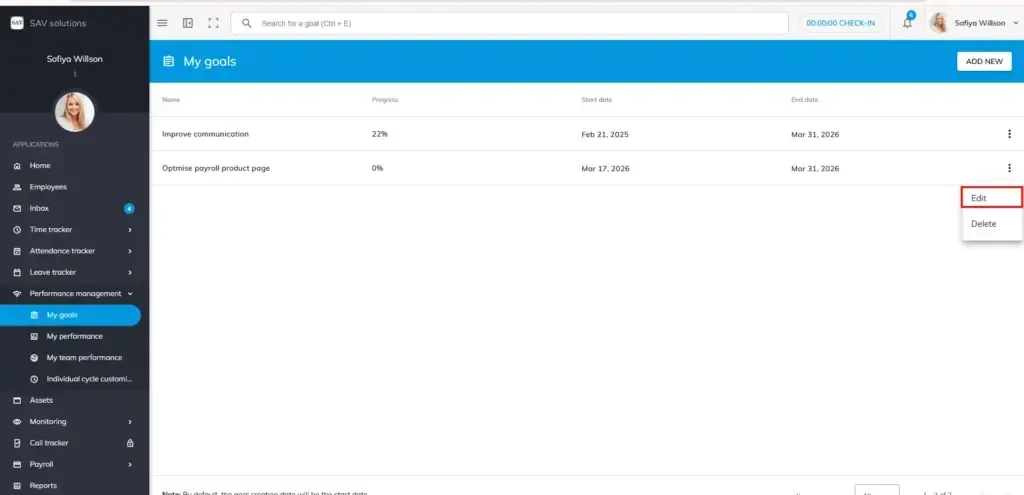
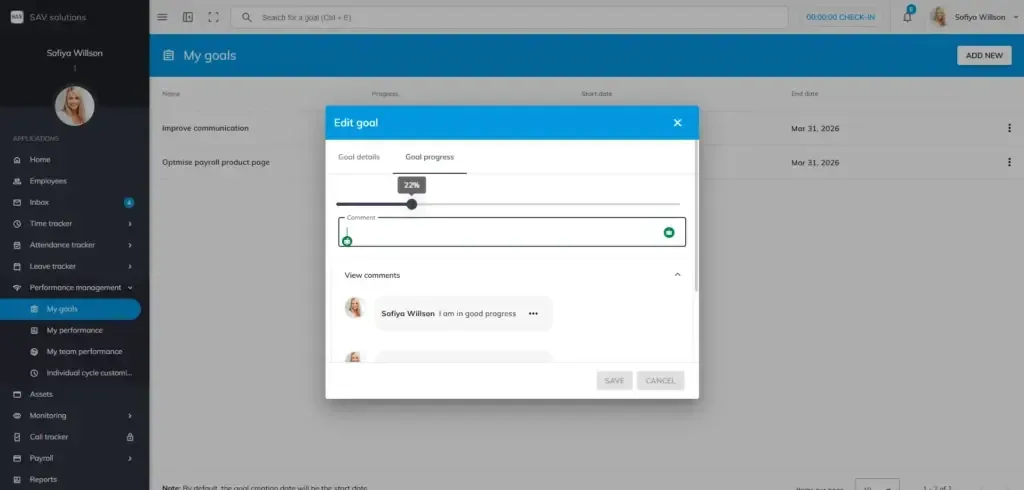
How to update goal progress:
Step 1: Click the three dots in the right corner of a goal and click the edit button. The same pop-up box, that appeared while you are creating the goal with goal name, end date and description will appear with mandatory fields filled.
Step 2: Next to the goals section, you will see a goal progress section. Click that. A movable progress bar with percentage indication will appear.
Step 3: Drag the bar as per your progress percentage and add comments.
Step 4: Below the comment box, you can see the “view comments “section. There you can see all your previous comments that you made while adding progress before.
Note: You can add progress percentage and comments as many times as possible until you reach 100 percentage. In case, the goal is not self-assigned but assigned by your manager, he/she can view your progress from “My team Performance” section.