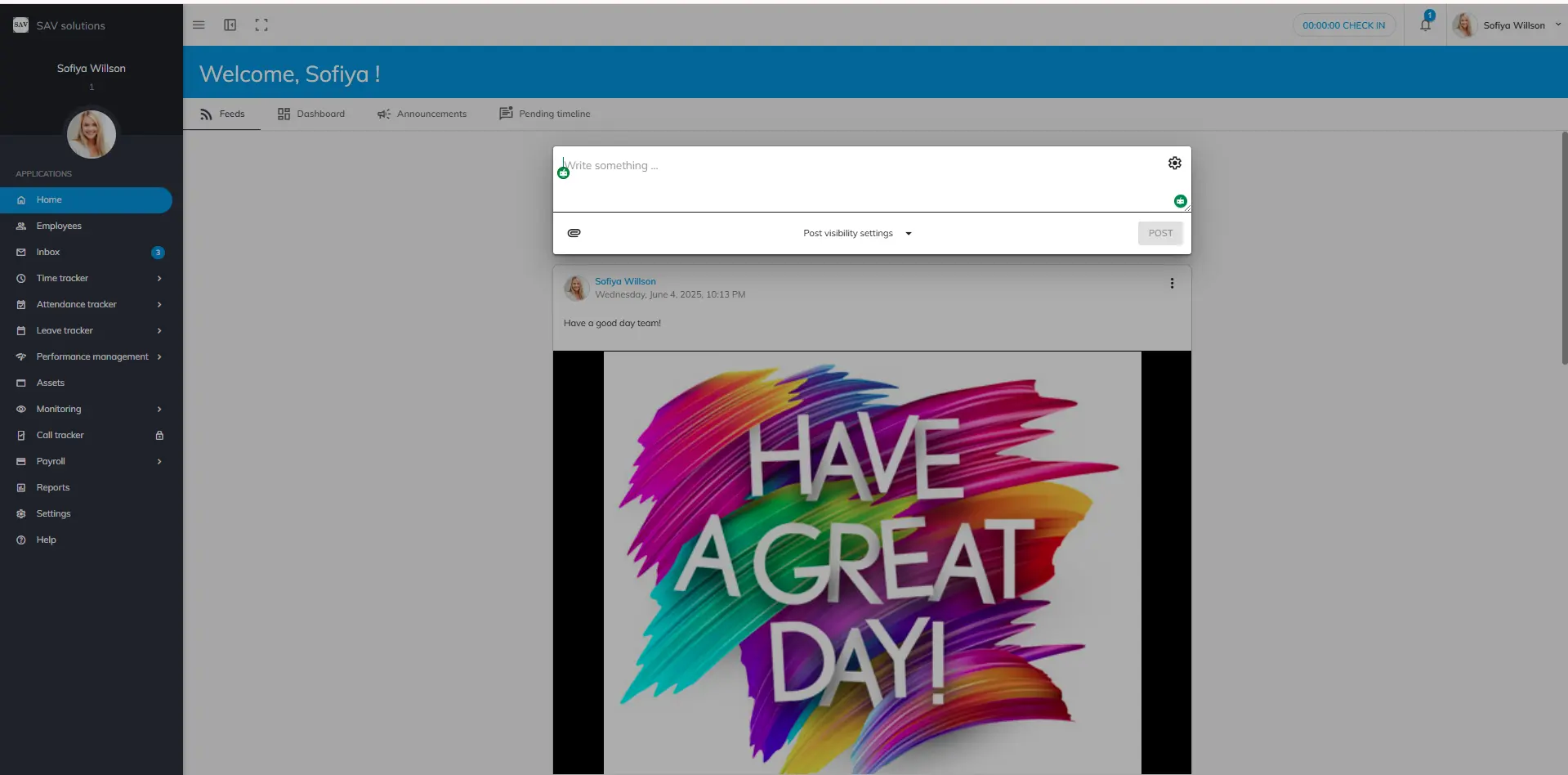
Feeds section is the intra-net social media platform of OfficePortal. Here, employees can share their thoughts, collaborate with team members, and foster stronger connections and better rapport among colleagues.
You will see the Write Something text box.Enter the content you want to write in your post.
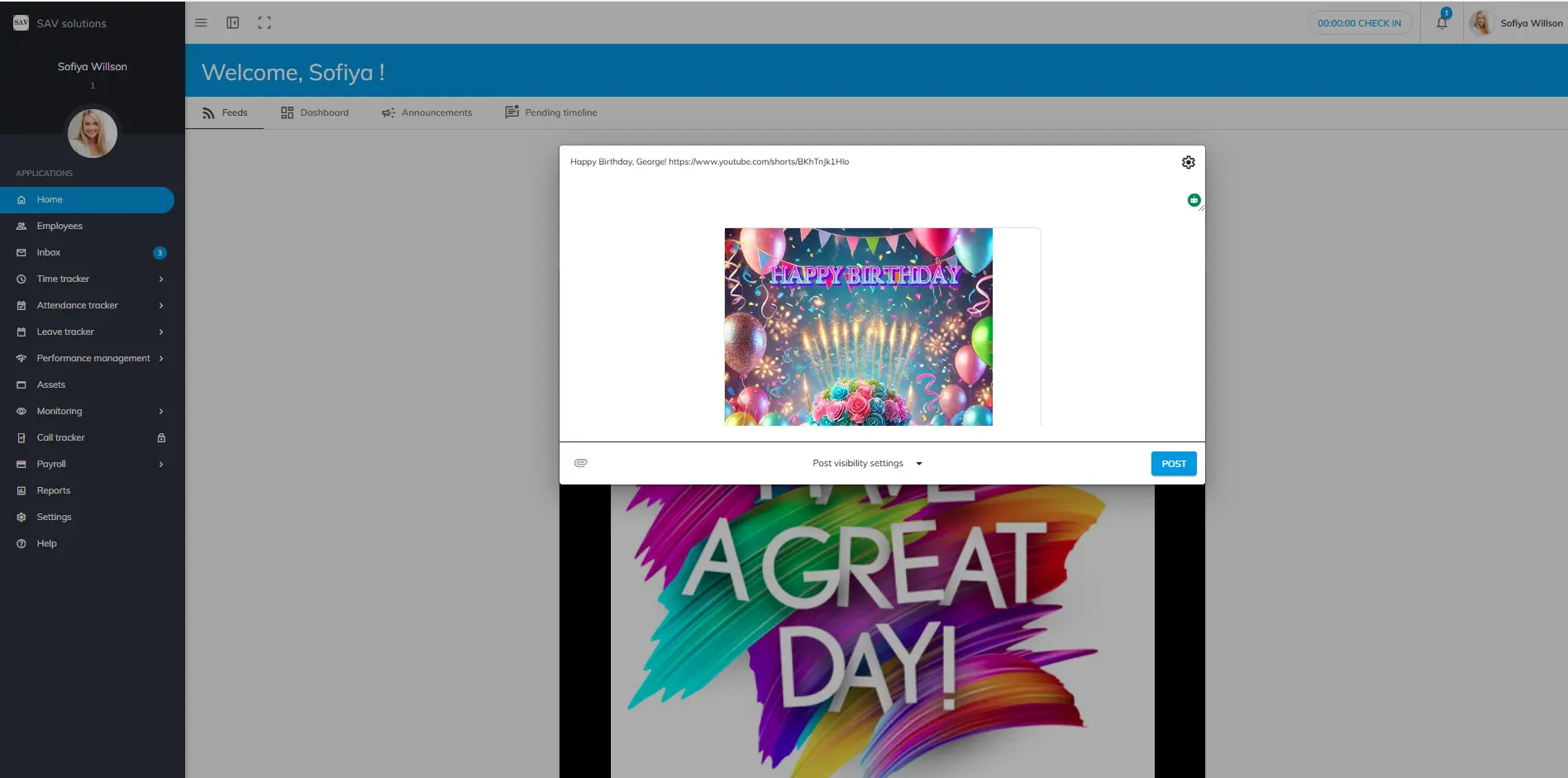
3. Enter the content you want to write in your post. Also, you can post any video URL that you desired to share with your organization. You will see the Write Something text box.Enter the content you want to write in your post.You can also upload word, ppt, excel, csv files into feeds.
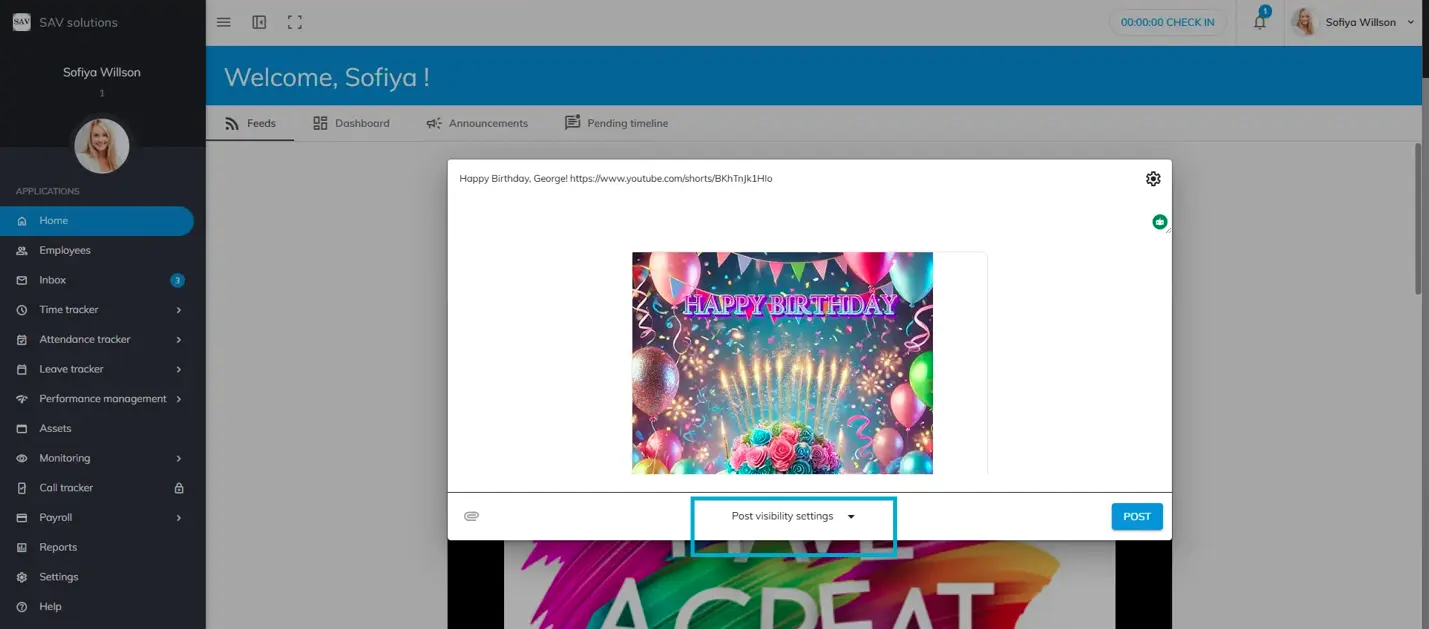
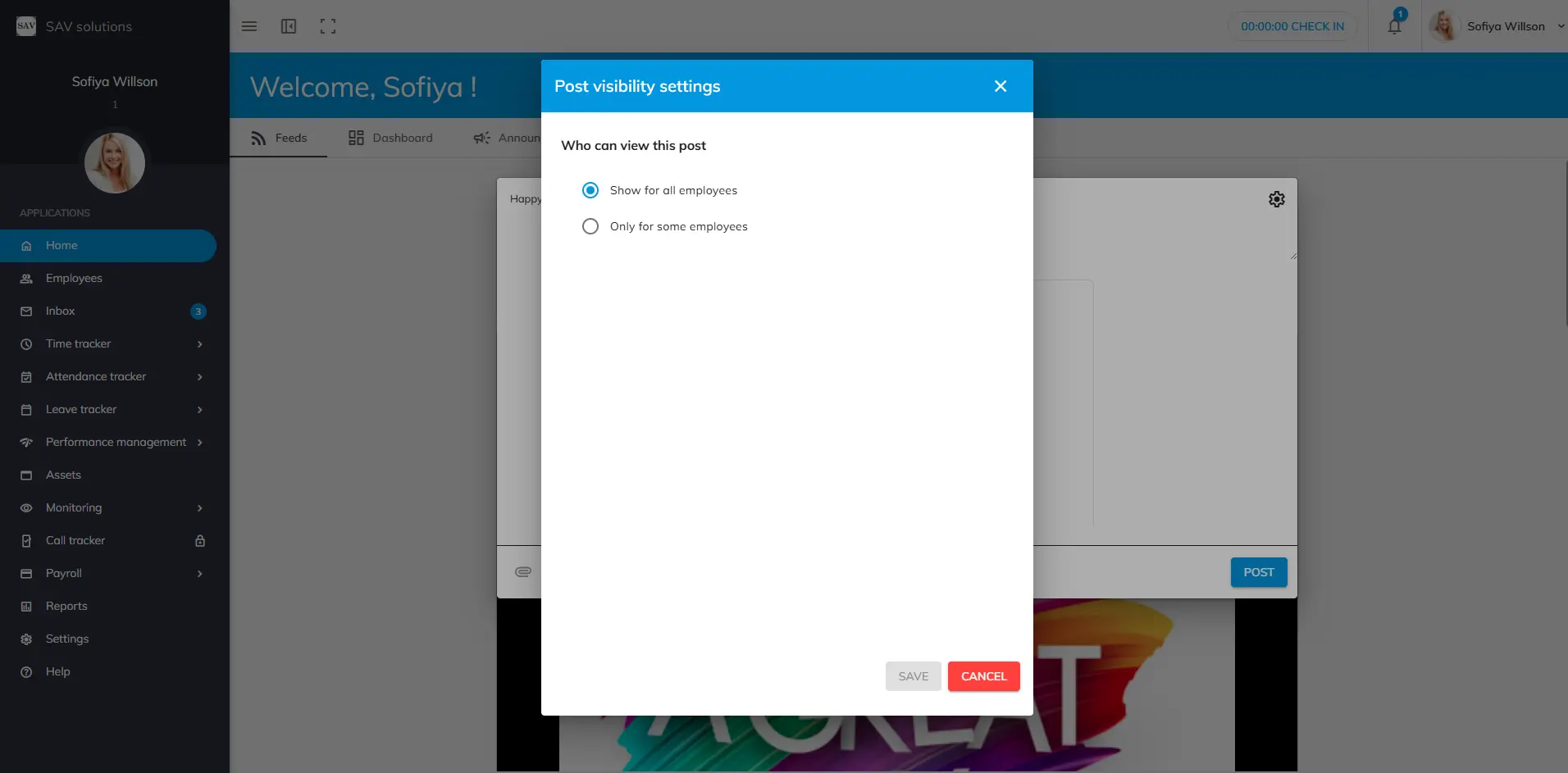
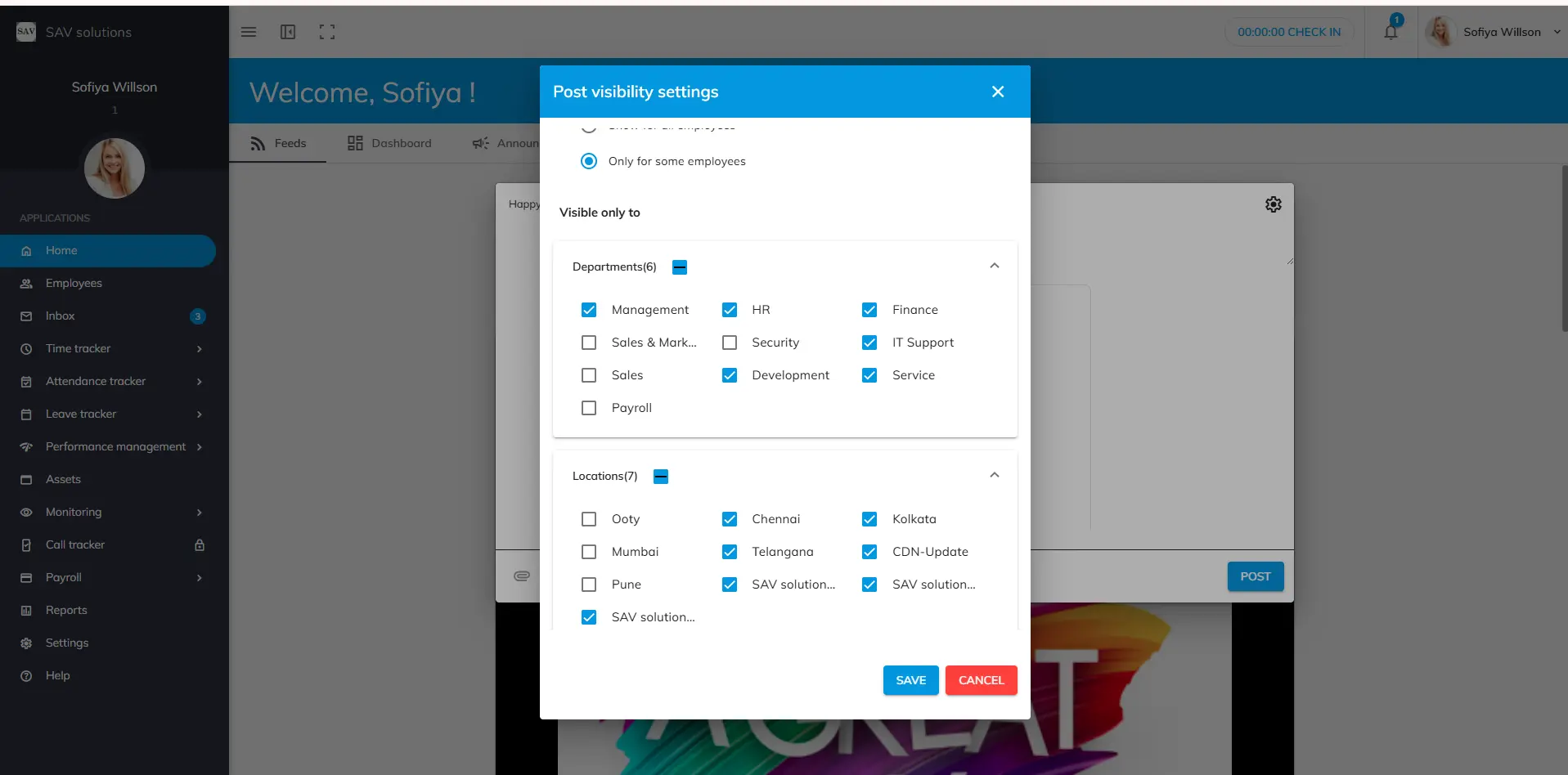
4. Before posting, you can see the post visibility settings option. It provides you with two options. Show for all employees and Only for some employees
5. If you select “Show for all employees” option, your post will be visible for all the employees of your organization.
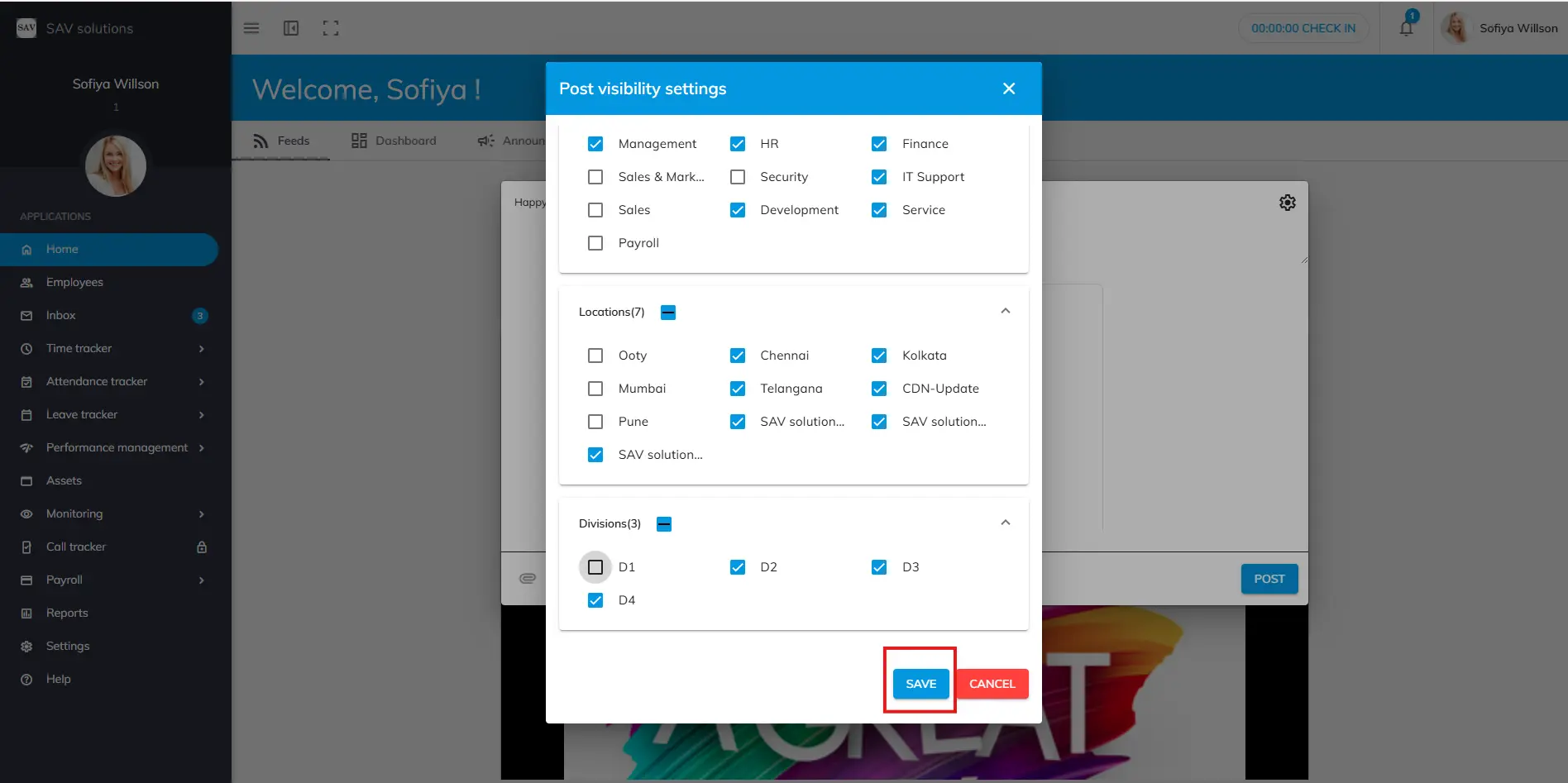
6. If you select “Only for some employees” option, you will be asked to choose specific Department, specific Location and specific Division. You can choose particular Department, Location or Division based on your needs and Press save to save the selections youmade.
7. After saving your post visibility settings, you can click “Post ” to post your feed.
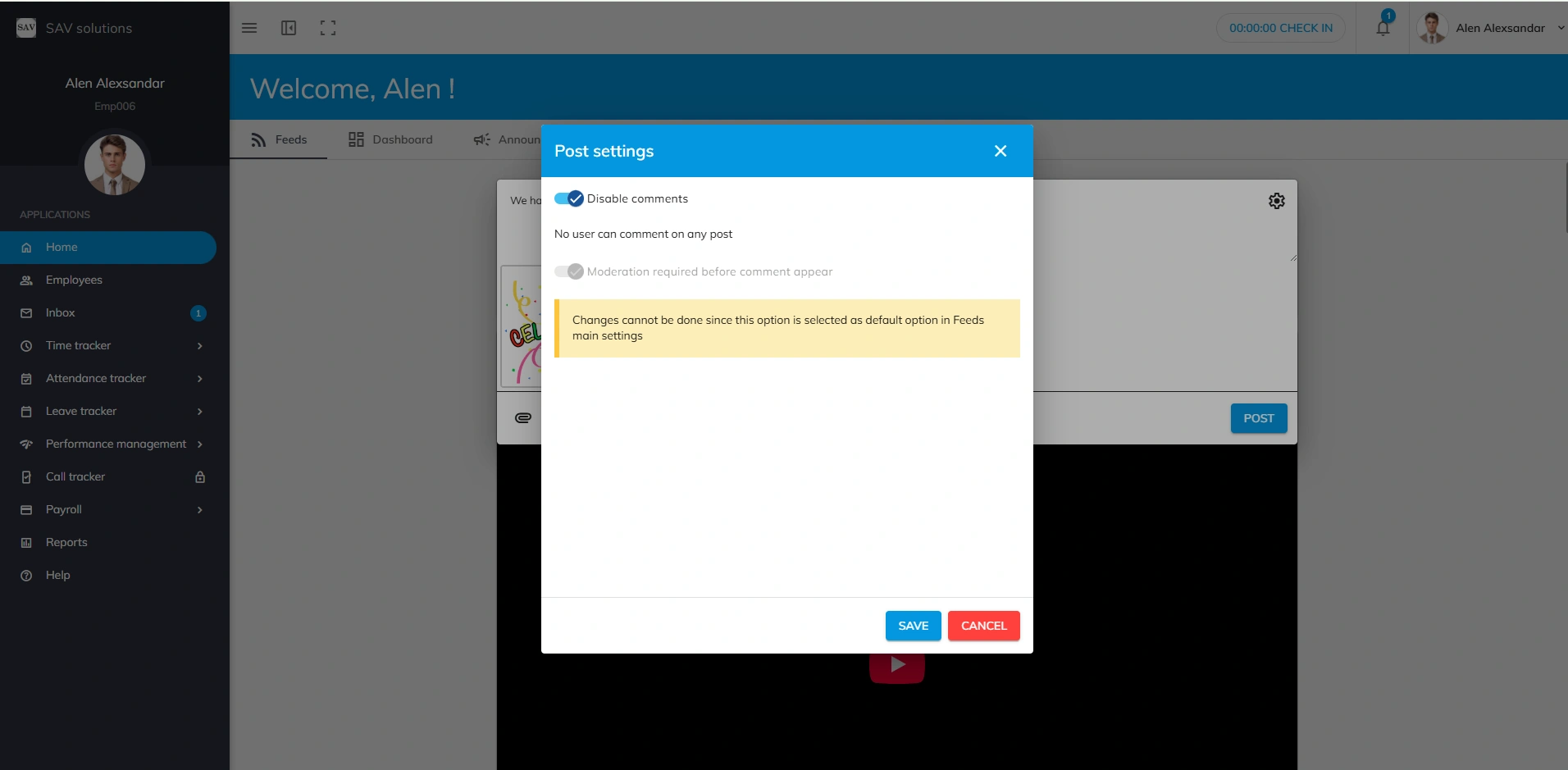
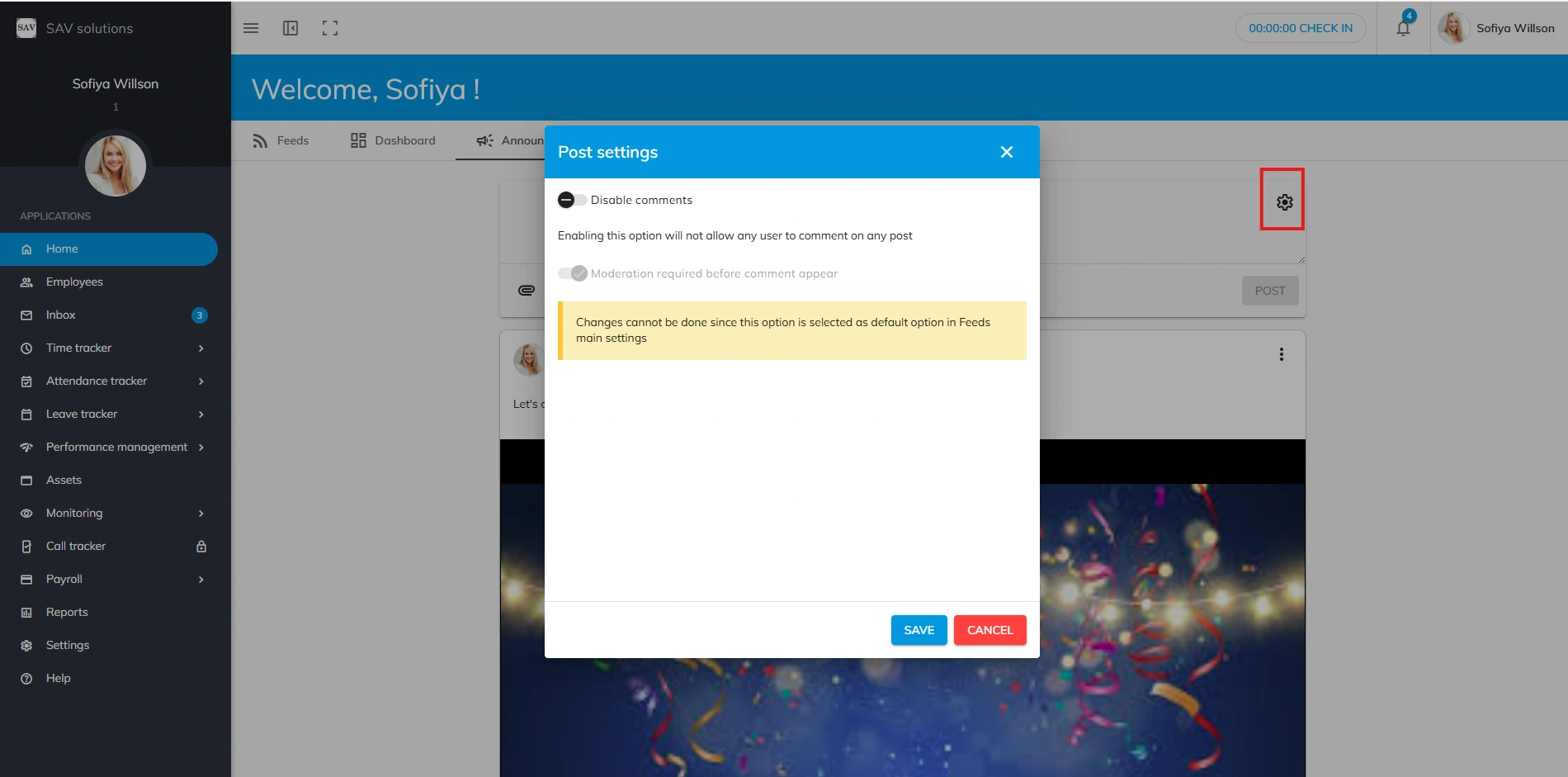
1. Before posting, in case you want to disable comments for this particular post, click on the settings icon in the top right corner and enable disable comments option.
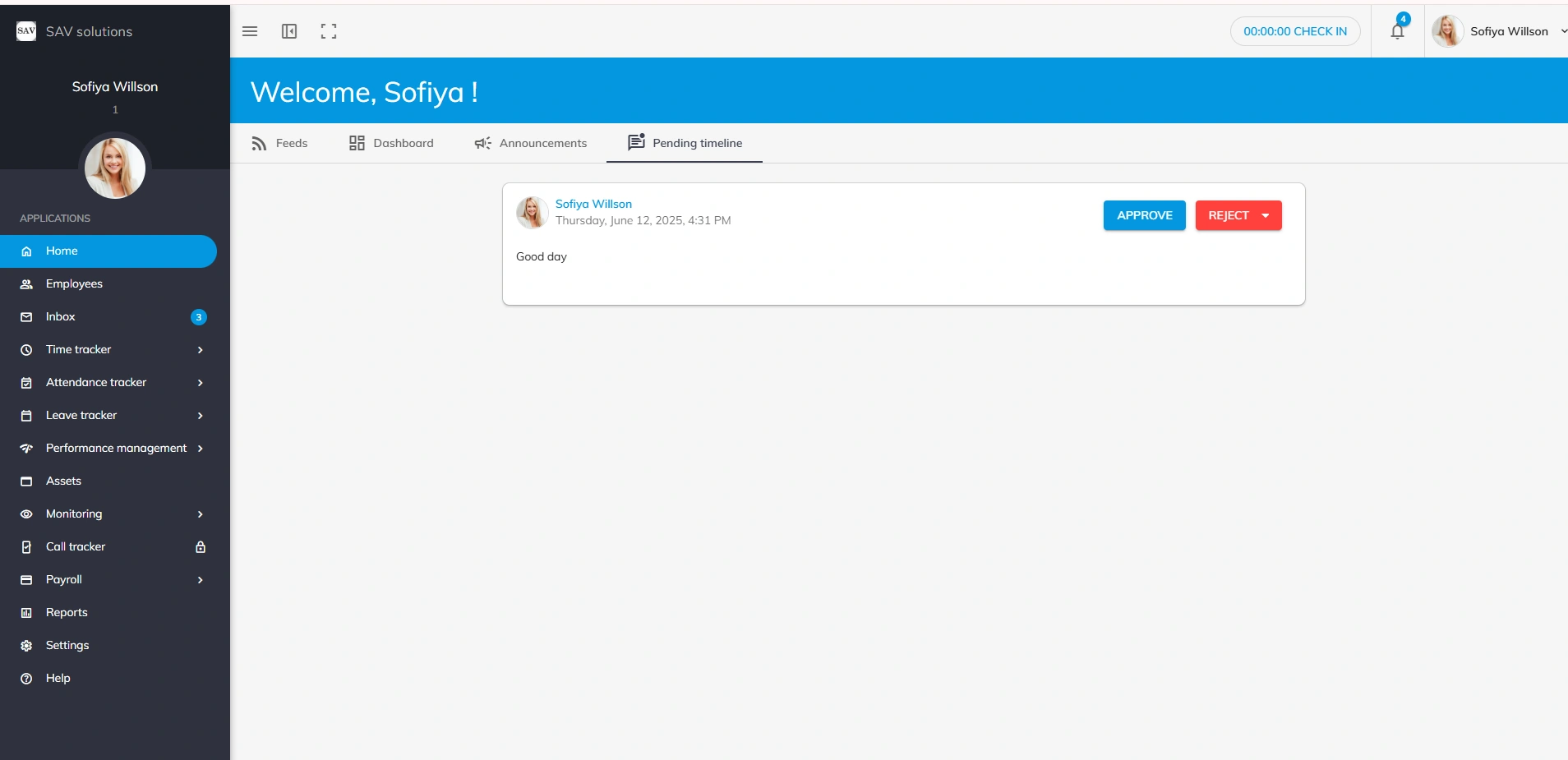
2. You can also switch on the “Moderate post” option if accessible. In case, your organisation has made it default, all your post and comments will for moderation to the authorized personnel. The Authorised can either “Accept or Reject your post or commnet.” Only accepted items will be appear on feeds. This workflow occurs only when moderte post option is enabled by you for a particular post or by default, your organisation has enabled it for all posts and comments. Otherwise, all your posts and comments will be displayed in the feeds section.
1. In case you want to write comments for posts made by others, write your comments in the comments box and click the “post button” post your comments.
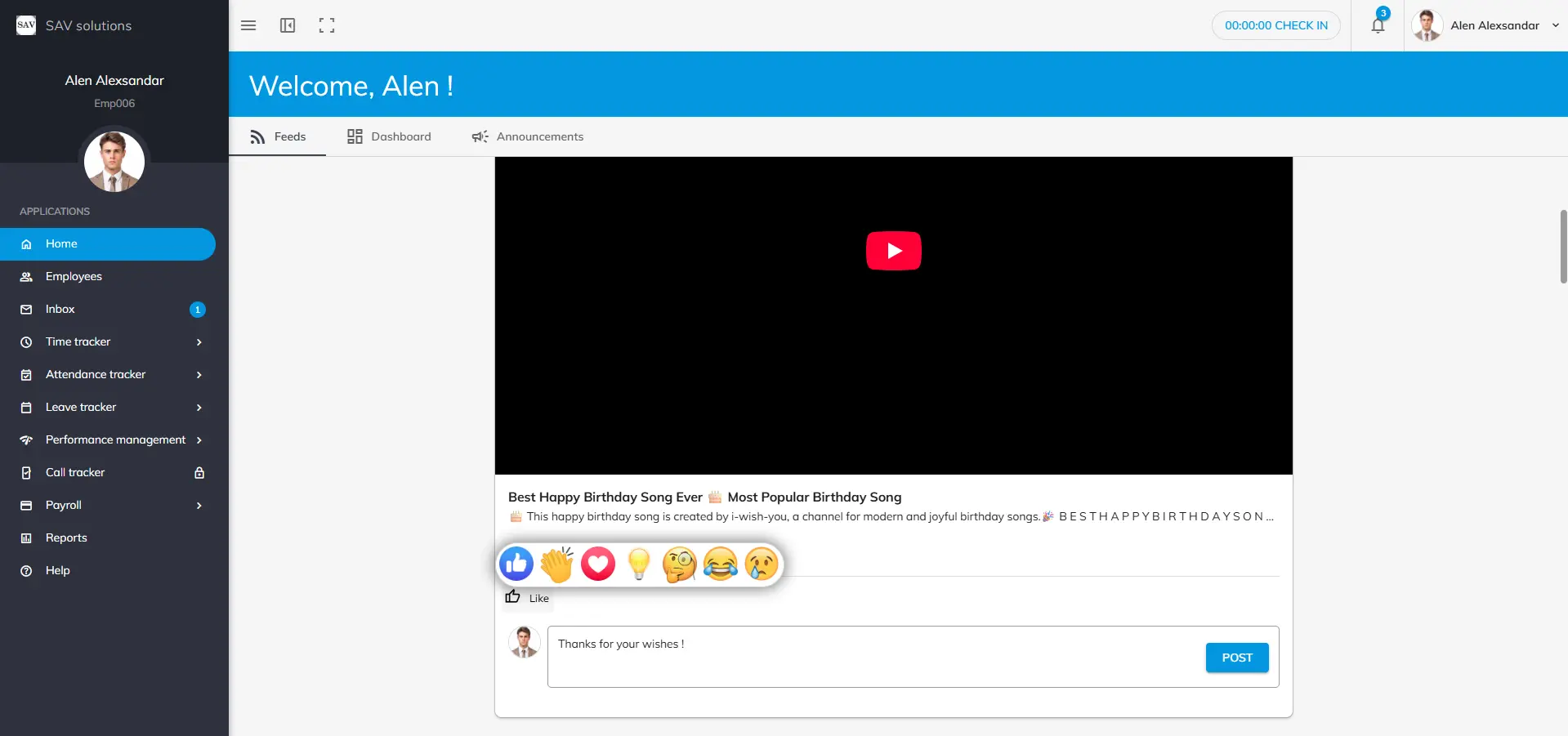
2. If you want to react to the post made by others, click the “Like button” in the bottom of the post. Once you hover over that, you will see lot of reaction options available. Press on any reaction emoji that you want to react with, to create for the post made by others.
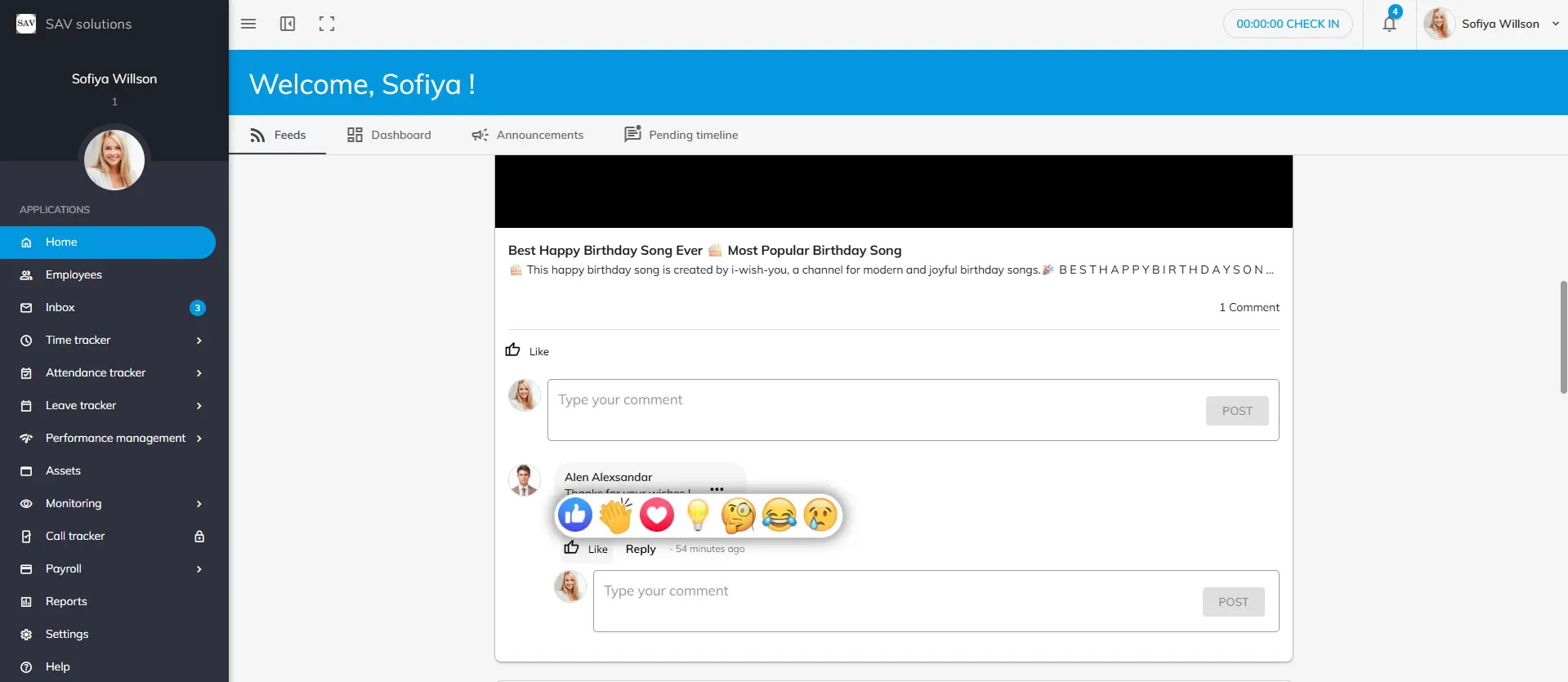
1. In case you want to react for others replies for a post, Click the “Like button” below their comment and react with emoji that you like.
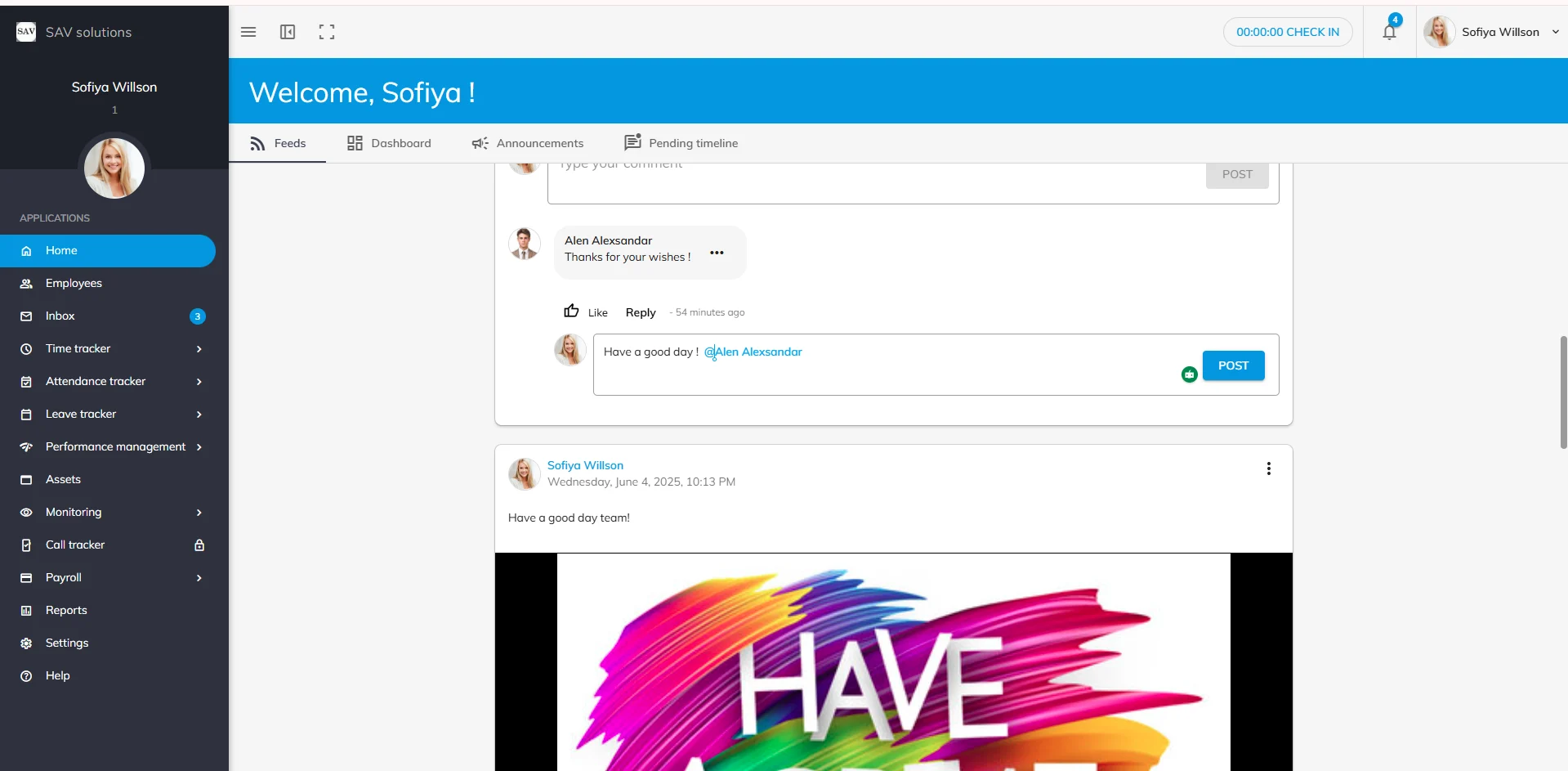
2. In case if you need to reply to their comments for a post, click the “Reply button” and write you comment and post it.
Please note: To mention someone in a post, they must be following you. If you want someone to be notified about a post related to them, they must follow you. You can tag someone even if you’re not following them as long as they’ve been tagged by someone else in posts or comments. Make sure to follow your colleagues on Office Portal to get notified about their posts and comments.
We use third-party services to give you the best user experience and to continuously improve it, however we will not sell your data to any one. These services use cookies. In order to be able to use these services, we need your consent first. I agree and can revoke or change my consent at any time with effect for the future.