
OfficePortal allows you to revise employee salaries quickly and easily, either for individual employees or in bulk. This guide walks you through each step of the salary revision process from initiating a revision to approval and payout.
Please note: At least one pay run must be completed using the employee’s current fixed salary before the Revise Salary button becomes available.
Revising an Individual Employee’s Salary #
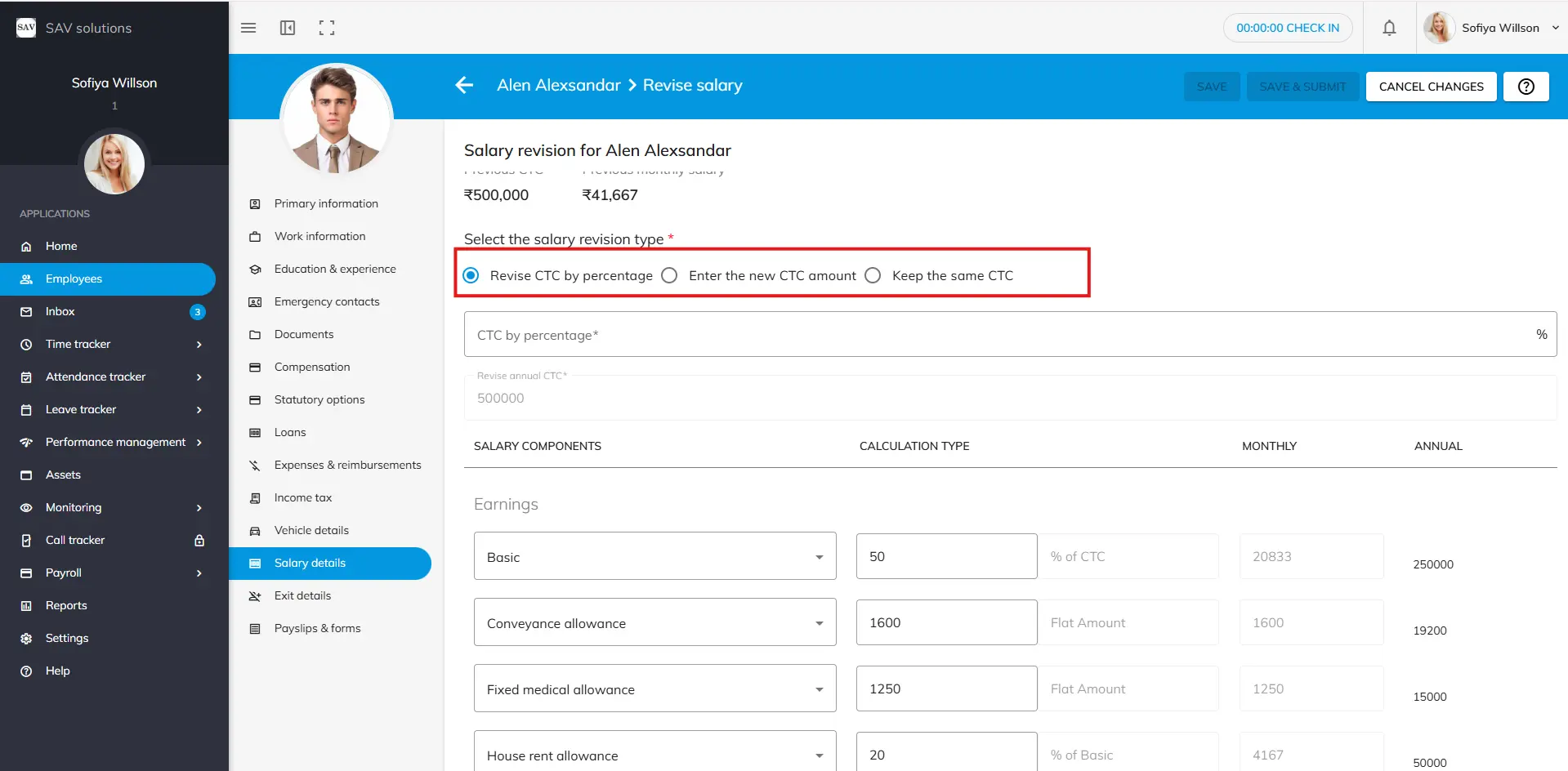
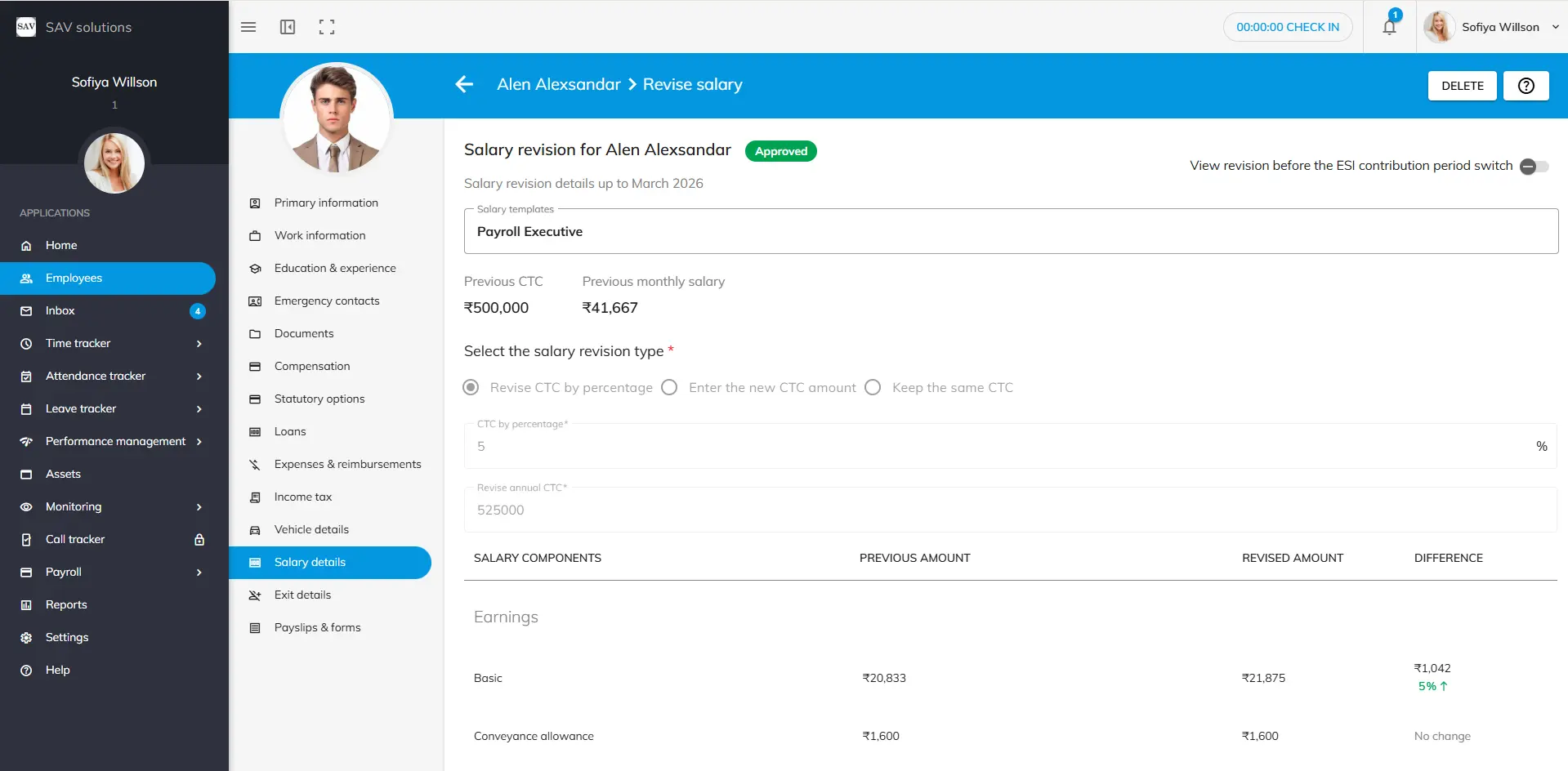
Step 1: Navigate to the employee’s profile and go to the Salary Details section. Click the Revise Salary button. The form will display the employee’s previous CTC and previous monthly salary for reference.
Step 2: Select the Revision Type. Choose how you want to specify the new salary:
- Revise CTC by Percentage: Enter a percentage increase and the revised annual CTC is automatically calculated.
- Enter New CTC Amount:. Directly type the; new CTC. Individual salary components will be auto adjusted. You can also customise each component manually to align with your organisation’s policy.
Note: When ‘Enter New CTC Amount’ is selected, the ‘CTC by Percentage’ field is automatically disabled. - Keep the same CTC : You can choose this option to maintain the same CTC for the employee in the salary revision.
Note: When ‘Enter New CTC Amount’ is selected, the other two fields will be automatically disabled. And vice-versa.
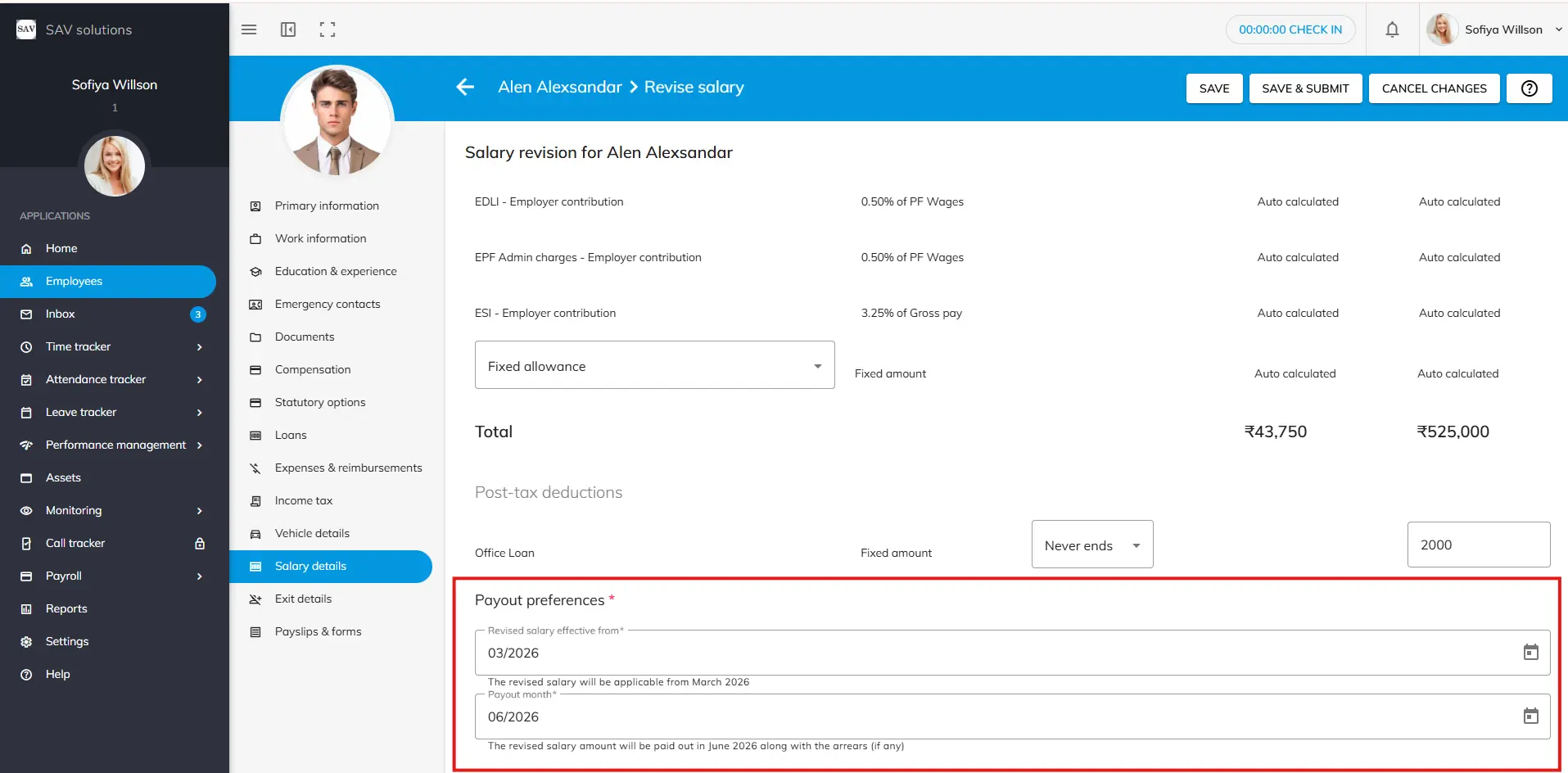
Step 3: Set Payout Preferences
You must configure two date fields:
- Effective From Month – The month from which the new salary applies. This can be the latest completed pay run month or any future month.
- Payout Month – The month in which the revised salary (and any arrears) will actually be paid.
Understanding Arrears #
If the Effective From Month is earlier than the Payout Month, the system automatically calculates and includes arrears in the payout month’s payroll. For example, if a revision is effective from August 2025 but the payout month is November 2025, the employee continues to receive their previous salary during August, September, and October. The salary difference for those three months is accumulated and paid out together in November. If both the Effective From and Payout Month are set to the same month, say, September 2025 — the revised salary is paid immediately with no arrears. Arrear amounts for each salary component are calculated based on the prorated rate and the employee’s attendance for the applicable months.
Step 4: Save or Submit
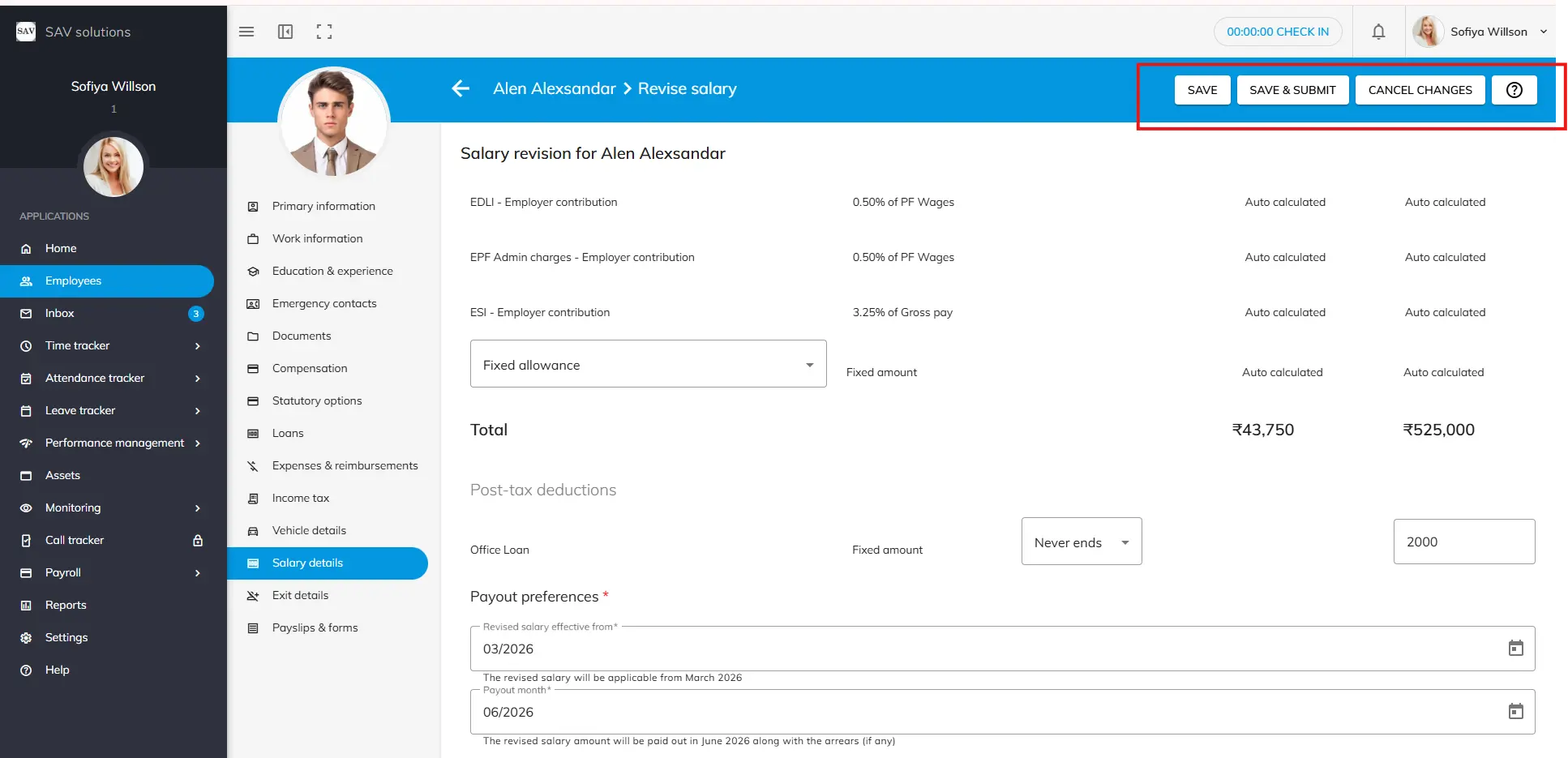
Once you have completed the revision, choose one of the following actions:
Save – Saves the revision as a draft. You can return later to edit or submit it.
Save and Submit – Submits the revision for approval. The status changes to Submitted.
Cancel Changes – Discards all changes and returns to the previous state.
After saving as a draft, a notification will appear in the Salary Details section. Click View Details to reopen the draft and make further edits, submit, cancel, or delete the revision.
Salary Revision Approval #
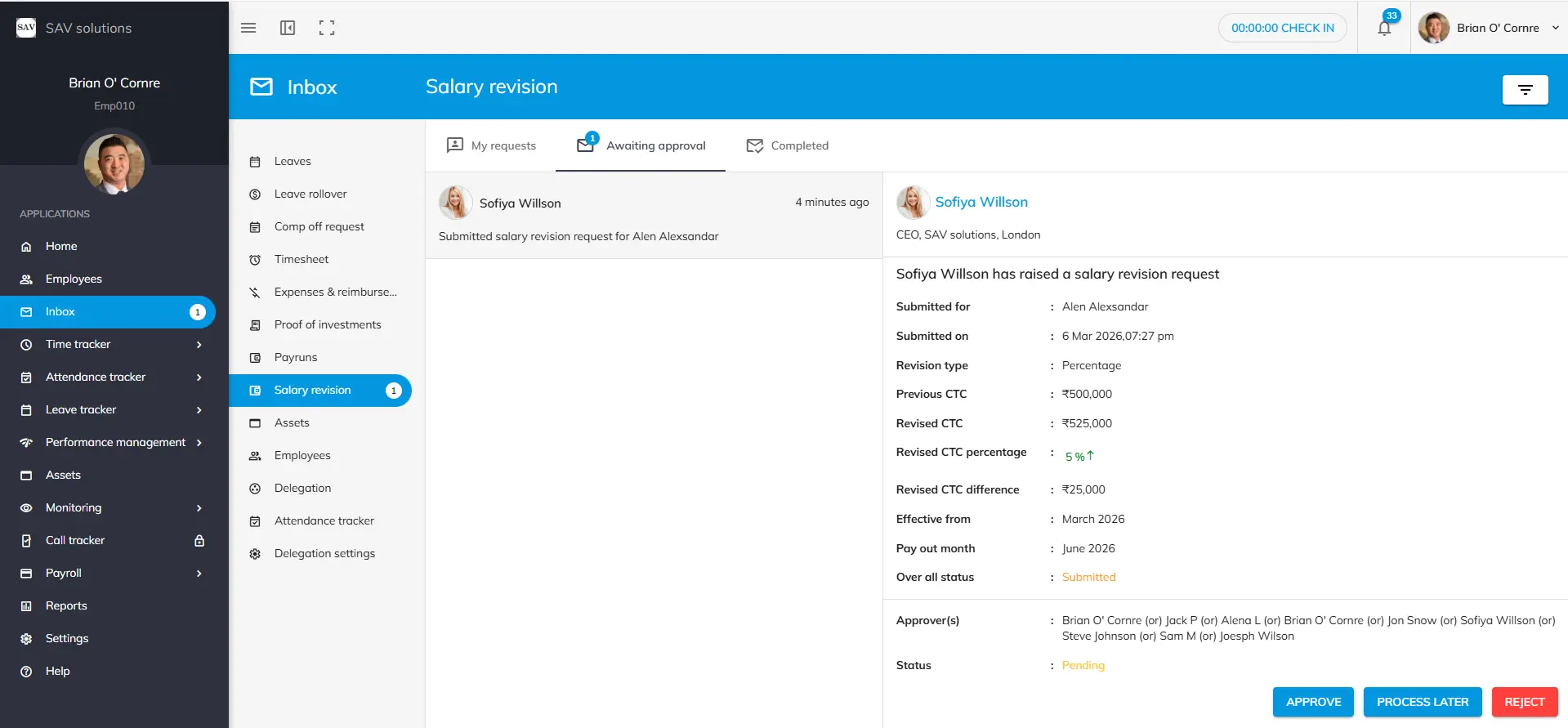
Once a salary revision is submitted, the designated approver receives a notification both within Office Portal and via official email. The request appears in the approver’s inbox under the Salary Revision section with the status Awaiting Approval.
Approver Actions
- Approve: Approves the revision and triggers the payout on the specified payout month.
- Reject: Rejects the revision. The requester is notified.
- Process Later: Allows the approver to defer the payout date based on organisational needs.
Note: If you are both the requester and the approver, the request will appear in your own inbox, and no separate notification is sent to others.
Deleting a Salary Revision #
The Delete option is available in the following situations:
• Draft status – Saved but not yet submitted.
• Submitted status – Submitted but not yet processed into a pay run.
• Approved status – Approved but no pay run has been created with the revised salary yet.
Note: Once a pay run has been created using the revised salary, the Delete option is permanently disabled for that record.
Revision History & Audit Trail: #
Click Salary Revision History to view a detailed breakdown of how each salary component changed with a particular revision. This provides full transparency and supports internal auditing requirements.
Once the payout month has been fully processed, a separate record for that revision appears at the bottom of the employee’s Salary Details section for historical reference.
Subsequent Payroll Processing: #
After a salary revision has been paid out, the following applies to future payroll:
- The next month’s salary is automatically processed using the last revised salary.
- No further arrears are applicable, as they were fully paid in the payout month.
- The Revise Salary button becomes available again once the most recent revision has been fully paid, enabling the next revision cycle.


