A merchant refers to any vendor, supplier, or service provider from whom an employee makes a purchase or incurs an expense on behalf of the organization. In the context of expense and reimbursement management, recording merchant details helps businesses track exactly where money is being spent.
For example, if an employee purchases office supplies from Amazon or books a cab through Uber, these service providers are referred to as merchants. Associating expenses with specific merchants ensures:
Better spend visibility across vendors and suppliers
Accurate reimbursement processing with a clear audit trail
Easier expense reporting and financial reconciliation
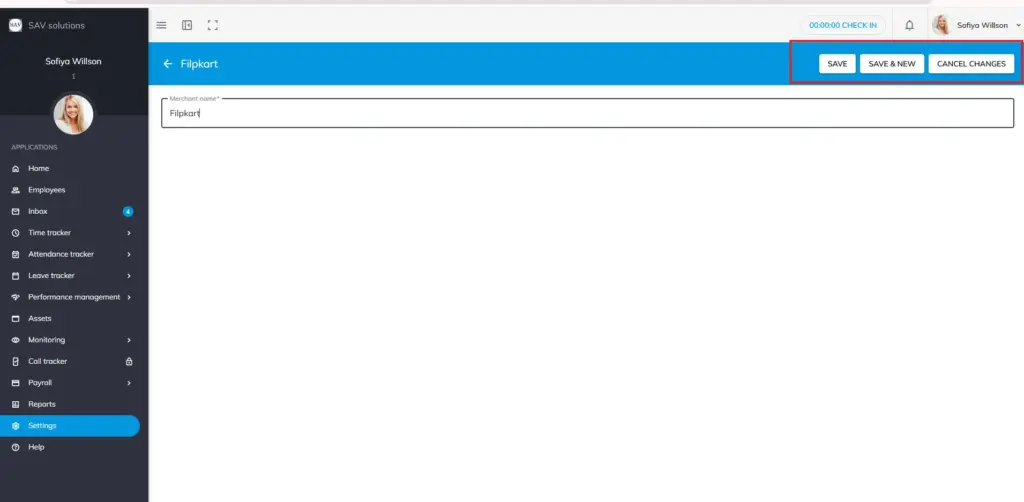
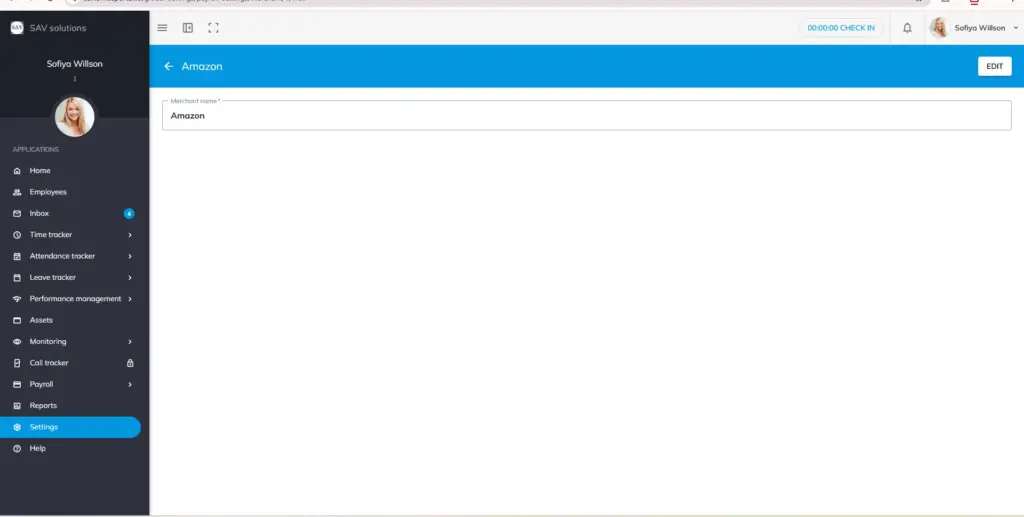
Enter the merchant’s name in the Merchant Name field (e.g., Amazon).
Choose one of the following actions:
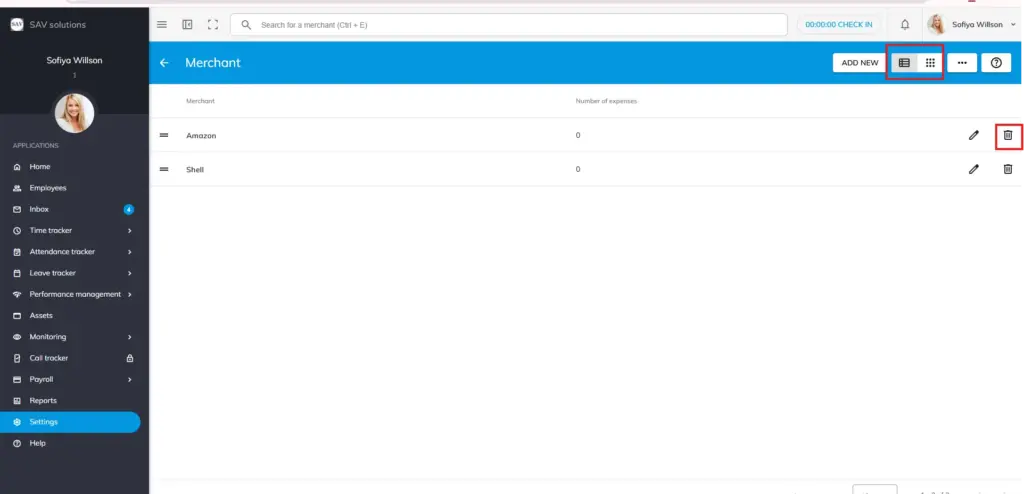
Please note: In the number of expenses section, you can view number of expenses occurred for this merchant.
Save – Saves the merchant and closes the form. Save & New – Saves the current merchant and opens a fresh form to add another. Cancel Changes – Discards the entry without saving.
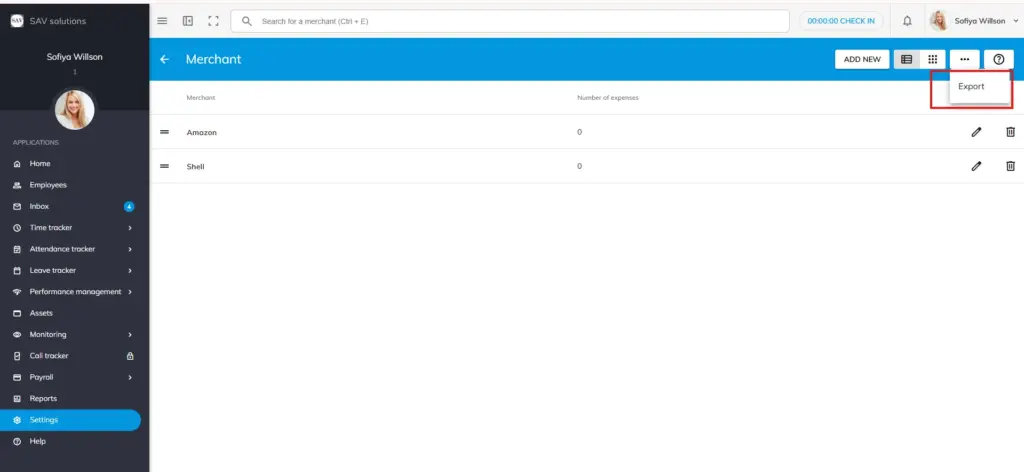
You can export the list of merchants using the Export option available on the Merchants page. This is useful for record-keeping, audits, or sharing data with other teams.
We use third-party services to give you the best user experience and to continuously improve it, however we will not sell your data to any one. These services use cookies. In order to be able to use these services, we need your consent first. I agree and can revoke or change my consent at any time with effect for the future.