
Gratuity is a statutory retirement benefit paid by an employer to an employee as a token of appreciation for their long-term service to the organization. Governed by the Payment of Gratuity Act, 1972, it is a lump sum amount paid to an employee upon resignation, retirement, superannuation, or in the event of death or disablement due to illness or accident.
Gratuity is entirely funded by the employer unlike EPF or ESI, there is no employee contribution towards gratuity. It is one of the most significant long-term benefits an employee receives over the course of their career.
Key Highlights of Gratuity #
- Gratuity is fully funded by the employer; no deduction is made from the employee’s salary.
- An employee becomes eligible for gratuity after completing a minimum of 5 years of continuous service with the same organization.
- The gratuity amount is calculated based on the last drawn salary of the employee — not the average salary over the years of service.
- The employer contribution rate for gratuity is 4.81% of the employee’s basic salary, deducted on a monthly basis as part of the payroll process.
The deduction cycle is monthly by default.
How to Configure Gratuity in OfficePortal? #
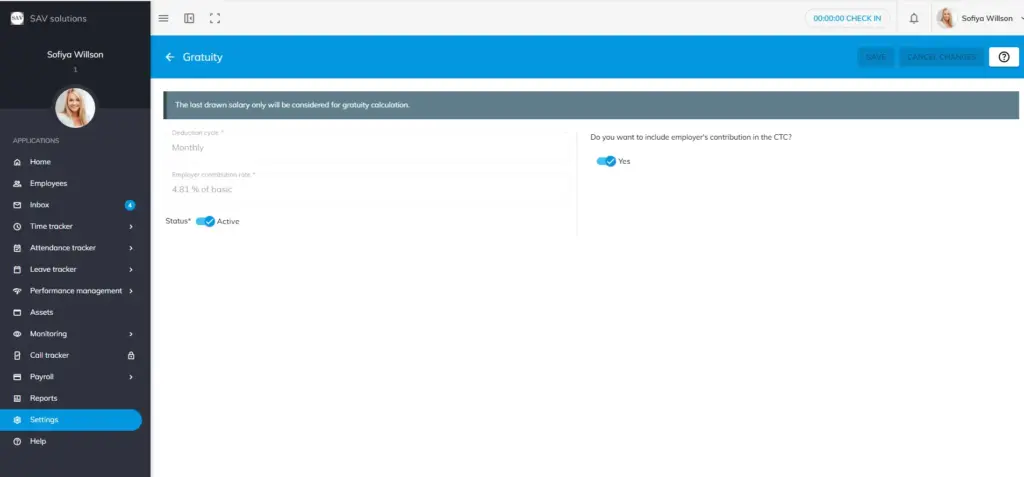
Step 1: Go to Settings → Payroll Settings → CTC Components → Statutory Components. Here you will find all statutory components including EPF, ESI, Professional Tax, Labour Welfare Fund, and Gratuity.
Step 2: Click the Edit option next to Gratuity. This will open the Gratuity configuration window.
Step 3: At the top of the Gratuity configuration window, you will see an important system note:
“The last drawn salary only will be considered for gratuity calculation.”
This means OfficePortal automatically calculates gratuity based on the employee’s most recent salary ensuring accurate and compliant gratuity computation.
Step 4: The Deduction Cycle is set to Monthly by default, ensuring that the gratuity provision is accounted for consistently in every payroll run.
Step 5: The Employer Contribution Rate is set at 4.81% of Basic Salary — in line with the standard gratuity calculation formula prescribed under the Payment of Gratuity Act, 1972.
Step 6: Set the Gratuity status as Active or Inactive based on your organizational requirements.
Step 7: Enable or disable the following option based on your organization’s needs:
- Do you want to include employer’s contribution in the CTC? — Choose whether the employer’s gratuity contribution should be reflected as part of the employee’s CTC package.
Step 8: Once all configurations are in place, click Save to apply your changes. To discard any modifications, click Cancel Changes to start over.


