What is Income Tax Declaration?
The Income Tax Declaration section in OfficePortal helps HR admins manage employees’ investment plans and expenses along with their corresponding allowances. This section handles all investment-related preferences, giving admins control over when employees can declare their income tax investments within the payroll cycle.
How to Unlock the Income Tax Declaration
To allow employees to submit their income tax declaration, follow these steps:
Step 1. Navigate to Settings > Payroll Settings > General Settings > Preferences > Income Tax Declaration.
Step 2. Click the Unlock button to enable employees to declare their income tax investments.
Step 3. Click Edit.
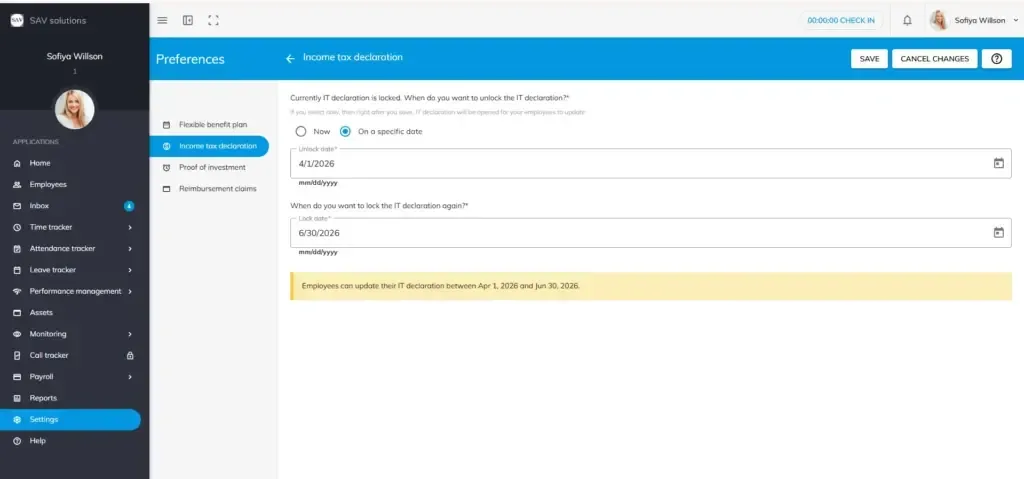
Step 4. Under “Currently Income Tax Declaration is locked. When do you want to unlock the Income Tax Declaration?”, select your preferred release date:
- Now – Income Tax Declaration opens immediately after saving, allowing employees to submit their investment declarations right away.
- Specific Date – Enter a date in the Unlock Date field. The Income Tax Declaration window will open for employees on that date.
Step 5. Under “When do you want to lock the Income Tax Declaration?”, select a cut-off date to automatically close the declaration window.
Step 6. Enter the desired lock date to define when the Income Tax Declaration period ends.
Step 7. Click Save.
Example: If you set the unlock date as Apr 01, 2026 and the lock date as Jun 30, 2026, employees can update their Income Tax Declaration between those two dates.
How to Lock the Income Tax Declaration
To restrict employees from making further changes to their income tax declaration, follow these steps:
Step 1. Navigate to Settings > Payroll Settings > General Settings > Preferences > Income Tax Declaration.
Step 2. Click Edit.
Step 3. The Income Tax Declaration status will show as currently unlocked.
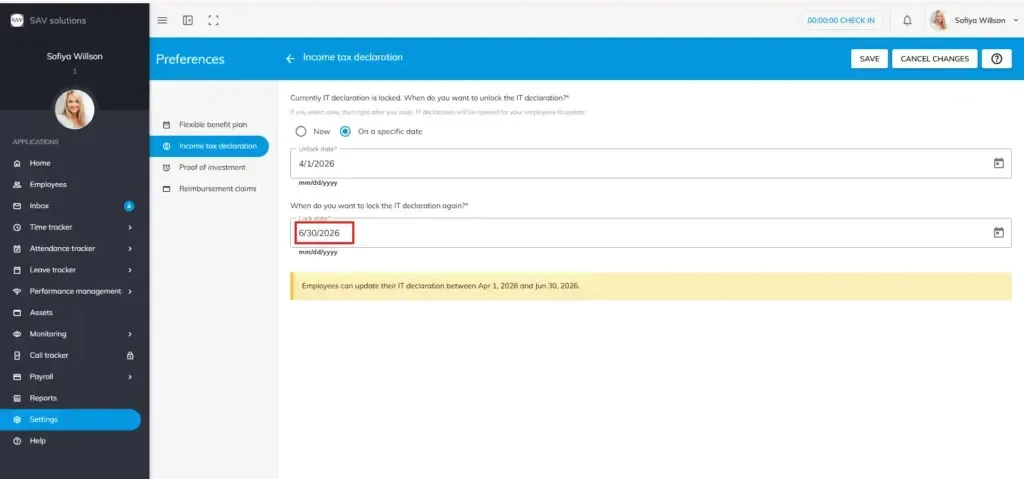
Step 4. Under “When do you want to lock the Income Tax Declaration?”, select your preferred lock date:
- Now – Income Tax Declaration locks immediately after saving. Employees will no longer be able to update their income tax declaration.
- Specific Date – Enter a date in the Lock Date field to schedule when the Income Tax Declaration window closes.
Step 5. Click Save.
Example: If you set the lock date as Jun 30, 2026, employees will be unable to update their Income Tax Declaration on or after that date.