The Employees’ State Insurance (ESI) scheme is a self-financing social security and health insurance scheme for Indian workers, managed by the Employees State Insurance Corporation (ESIC) under the Employees’ State Insurance Act, 1948. It provides employees with financial protection against health-related contingencies such as sickness, maternity, disablement, and employment injury.
ESI is applicable to all employees earning a gross salary of up to ₹21,000 per month and contributions are made by both the employer and the employee every month as a percentage of the employee’s gross pay.
ESI Contribution Rates
Unlike EPF, ESI contributions are calculated as a percentage of the employee’s gross pay:
- Employer Contribution Rate — 3.25% of Gross Pay
- Employee Contribution Rate — 0.75% of Gross Pay
The deduction cycle is monthly by default, ensuring consistent and timely contributions towards the employee’s social security coverage.
Benefits Covered Under ESI
ESI provides the following benefits to registered employees and their dependents:
- Medical Benefit – Full medical care for the employee and family
- Sickness Benefit – Cash allowance during certified illness leave
- Maternity Benefit – Paid maternity leave for women employees
- Disability Benefit – Financial support in case of work-related injury
- Dependent Benefit – Monthly pension to family in case of employee’s death due to work injury
- Funeral Expenses – Lump sum amount to dependents upon death of the insured employee
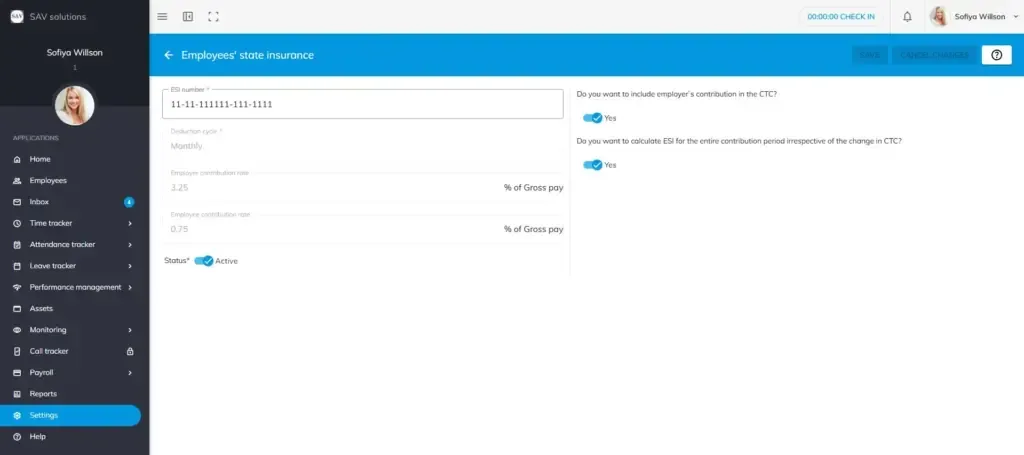
How to Configure ESI in OfficePortal
OfficePortal makes ESI configuration quick and straightforward. Follow the steps below to set up your ESI settings accurately.
Step 1: Go to Settings → Payroll Settings → CTC Components → Statutory Components. Here you will find all statutory components including EPF, ESI, Professional Tax, Labour Welfare Fund, and Gratuity.
Step 2: Click the Edit option next to Employees’ State Insurance. This will open the ESI configuration window.
Step 4: Enter the Employer Contribution Rate as 3.25% of Gross Pay, in line with the current statutory requirement.
Step 5: Enter the Employee Contribution Rate as 0.75% of Gross Pay, as mandated under the ESI Act.
Step 6: Set the ESI status as Active or Inactive based on your organizational requirements.
Step 7: Enable or disable each of the following options based on your organization’s needs:
- Do you want to include employer’s contribution in the CTC? — Choose whether the employer’s ESI contribution should be reflected as part of the employee’s CTC.
- Do you want to calculate ESI for the entire contribution period irrespective of the change in CTC? — If enabled, ESI will be calculated for the full contribution period even if there is a change in the employee’s CTC during that period.
Step 8: Once all configurations are in place, click Save to apply your changes. To discard any modifications, click Cancel Changes to start over.